Text & subtitles into MP3 speech,
a free text-to-speech converter
Turn plain text or subtitle files (.srt/.vtt) into natural MP3 audio using Microsoft Edge neural TTS — a free text-to-speech converter for Korean, English, Chinese and Japanese. No signup, no login, no API key — one 12 MB installer and you're done. Built for YouTube dubbing, lecture narration, audiobooks.
Windows 10 (1803+) / 11 (64-bit) · No runtime prerequisites · Internet required when generating MP3. All releases
▶ Live Demo — text · subtitle → MP3 flow
An interactive recreation of the real app's flow: type text → preview → save MP3 → drop an .srt → auto-extract dialogue → save MP3, looping automatically. Before you download, watch 30 seconds and get a feel for it.
The actual app
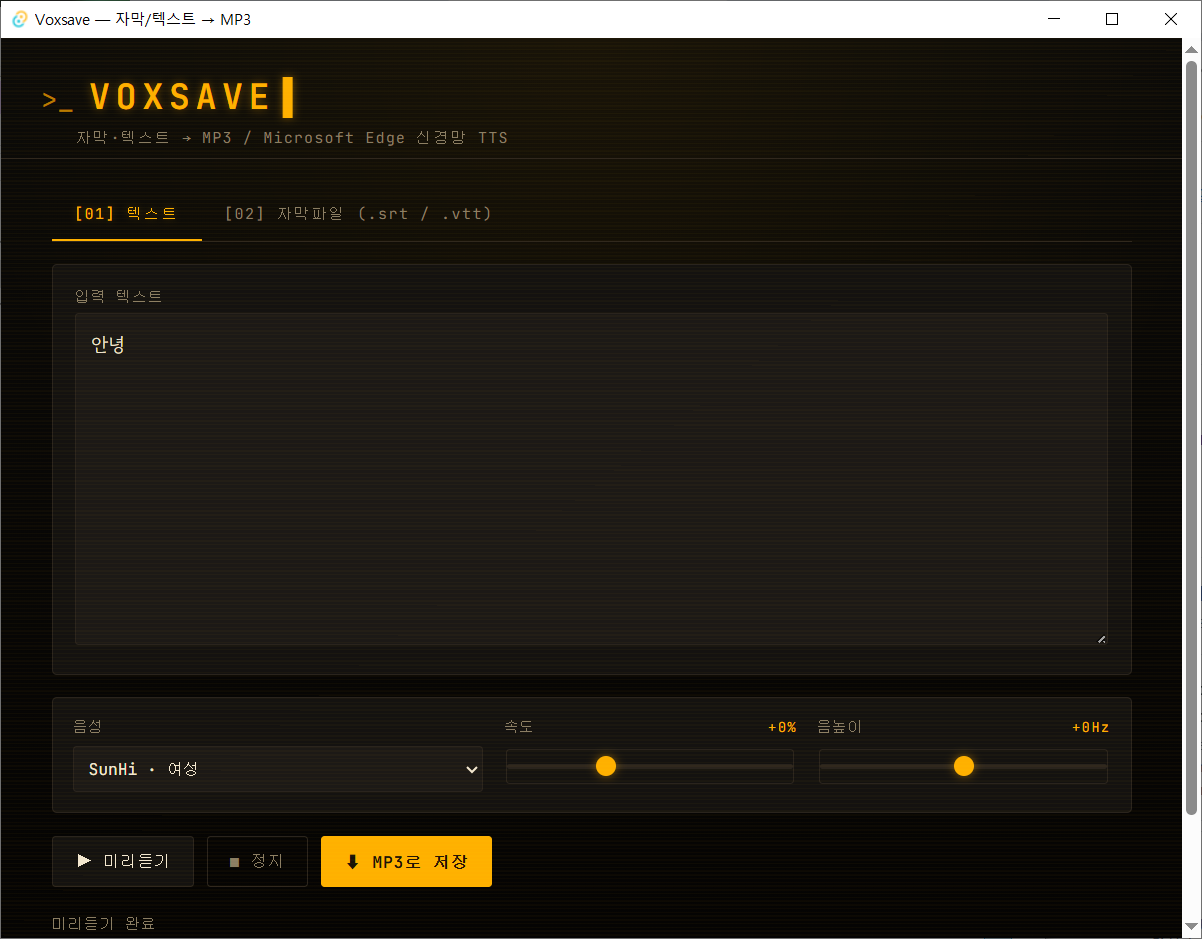
Text input, subtitle drop zone, voice / rate / pitch controls, preview and save buttons — everything is in one screen. First MP3 usually lands within a minute of first launch.
Why this exists
Most free TTS services either butcher Korean pronunciation, cap character counts, or shove you through signup and an API-key dashboard before you can hear a single sentence. Dubbing one short video shouldn't require a credit card.
Voxsave is a small desktop wrapper that calls Microsoft Edge's neural TTS from your machine. One installer, double-click, done. No signup, no token, no character limit.
📖 Related guide: Turning text into an MP3: built-in voices, free tools and subtitle dubbing
Who it's for
- YouTube creators — Korean dubbing, narration, subtitle-to-voice. Zero voice-actor budget
- Lecturers / presenters — slide-deck voice guidance, prerecorded intro / outro lines
- Audiobook / podcast authors — proof-of-concept episodes, length and pacing testing before booking studio time
- Accessibility — turn long-form text into audio for family members with visual impairments
- Learners — translate English texts and listen to them on the commute
Download & install
Hit the download button above or grab Voxsave_0.1.0_x64-setup.exe from GitHub Releases. About 12 MB.
- Windows 10 (1803+) / 11 (64-bit)
- WebView2 (bundled with Win11, ships in Win10 1803+; the installer auto-downloads if missing)
- Internet required when generating MP3 (Edge TTS lives in the cloud)
- Python / Node / Rust not required — those are build-time only
Windows SmartScreen may warn “Windows protected your PC”. That's expected for a free, unsigned app. Click More info → Run anyway to continue.
Your first MP3 in 30 seconds
Step 1 — Type text or drop a subtitle
On the [01] Text tab, type any sentence; or on the [02] Subtitle (.srt / .vtt) tab, drag a subtitle file into the drop zone. Timecodes, cue numbers, and HTML tags are stripped automatically — only the dialogue remains.
Step 2 — Pick voice, rate, pitch
- Voice — three Korean voices (SunHi female, InJoon male, Hyunsu multilingual) + English / Japanese / Chinese and more
- Rate — -50% ~ +100% (try -10% for study, +30% for fast review)
- Pitch — -50Hz ~ +50Hz (±20Hz for character voices)
Step 3 — Preview
Hit ▶ Preview. What you hear is identical to what gets saved. If it sounds right, save it.
Step 4 — Save as MP3
Hit ⬇ Save as MP3, pick a location, done. A full-length subtitle (e.g. a 1,500-line film, 5,000+ characters) converts in one shot.
💡 HTML tags like <i> or <font> and Aegisub-style tags like {\an8} are stripped cleanly.
Use cases
YouTube dubbing
Prep a .srt → drop into the subtitle tab → SunHi voice, +5% rate → save → drop the MP3 into Premiere / DaVinci as an audio track. A full hour of footage can be dubbed in an afternoon, with no studio booking.
Lecture / presentation narration
Generate short voice cues for slides and reuse them every semester instead of re-recording. Drop the MP3s into your slide deck and they trigger as you advance.
Study material
Translate an English passage into Korean, generate it with the InJoon voice, listen on the commute. Convert a whole textbook into audio in one batch.
Audiobook / podcast prototype
Feed the whole script in, get a first-episode demo. Validate length and delivery before paying for studio time and voice talent.
Under the hood — Tauri + edge-tts sidecar
Voxsave is built on Tauri v2 (Rust + WebView2). The web UI sends your text to a Rust backend, which spawns a PyInstaller-bundled edge-tts sidecar that streams Microsoft Edge TTS straight into an MP3 file.
[Web UI (HTML/JS)]
  └─ invoke('synthesize', {text, voice, rate, pitch, out})
        ▼
[Rust backend]
  ├─ text → UTF-8 temp .txt
  ├─ spawn shell sidecar
  └─ remove temp file, return result
        ▼
[edge-tts sidecar (.exe)]
  └─ Microsoft Edge neural TTS → write MP3 directly
The preview path is separate — it uses the Web Speech API and your local OS voices, so previews work offline. Only the final MP3 export goes through the edge-tts cloud. The full source is on GitHub.
Voices — Korean, English, Chinese, Japanese
The exact voice picker from the app — 4 languages, 10 voices ready to choose.
| Voice | Voice ID | Gender |
|---|---|---|
| 🇰🇷 Korean | ||
| SunHi | ko-KR-SunHiNeural | Female · default |
| InJoon | ko-KR-InJoonNeural | Male |
| Hyunsu | ko-KR-HyunsuMultilingualNeural | Male · multilingual |
| 🇺🇸 English (US) | ||
| Aria | en-US-AriaNeural | Female |
| Guy | en-US-GuyNeural | Male |
| Jenny | en-US-JennyNeural | Female |
| 🇯🇵 Japanese | ||
| Nanami | ja-JP-NanamiNeural | Female |
| Keita | ja-JP-KeitaNeural | Male |
| 🇨🇳 Chinese | ||
| Xiaoxiao | zh-CN-XiaoxiaoNeural | Female |
| Yunxi | zh-CN-YunxiNeural | Male |
Dozens more languages and voices are available via the sidecar's --list option.
FAQ
Q. Does it work offline?
The preview plays through your OS voice and works offline, but saving MP3 needs an internet connection— edge-tts calls Microsoft's TTS servers. The app itself runs locally; only synthesis is in the cloud.
Q. Is there a character limit?
None in practice. A film-length subtitle (1,500+ lines, 5,000+ characters) converts in one pass.
Q. Can I use it commercially?
It follows the Microsoft Edge TTS terms — generally fine for personal and commercial content, but check Microsoft's official licensing page before a large production.
Q. macOS / Linux builds?
Windows-only for now. Tauri makes macOS / Linux builds structurally possible — they're on the roadmap.
Q. Audio gets cut off at the end.
Add a blank line or two after your final period. Or split long text into paragraphs, save each, and concatenate — that's the safer pattern for very long inputs.
Q. SmartScreen blocks the installer.
That's normal for an unsigned free app. Click More info → Run anyway. If you'd rather not trust a binary, build from source yourself.
🎙️ Free · Open source · No ads
Built to take the payment-and-signup friction out of decent Korean-friendly TTS. One video dubbed, one slide deck narrated, one book turned into audio — all without seeing a checkout page.
Source & issues: github.com/cflab2017/Tool_Voxsave
Found this useful? ❤️ Support the maker
Any amount helps. Sent directly with no ad or processing fees.
Comments 0
No comments yet. Be the first.
Only members can comment.
Comments with ads, abuse, personal information or illegal content are hidden or removed. Comments are shown with your nickname. Privacy Policy