How to delete a blank page in Word — the page after a table, and why Ctrl+Enter beats pressing Enter
If your document prints an extra empty sheet at the end, or a heading you pushed to the next page with Enter slides halfway down whenever you edit above it, this lesson is for you. Using a made-up book club dues statement, it builds the four common causes of a blank page, finds each one with formatting marks (¶), removes it, and shows why a page break (Ctrl+Enter) is better than a stack of Enters. Page counts were measured in Word for Microsoft 365 on this PC.
First, show formatting marks (¶) — see what's on the blank page
A blank page is never really empty — something invisible is on it. Click the ¶ button in the Home tab's Paragraph group (Microsoft calls it Show/Hide ¶) or press Ctrl+Shift+8, and paragraph marks (¶), page breaks and section breaks appear on screen. They don't print.
| What you see on the blank page | Cause | Fix (result on this PC) |
|---|---|---|
| Several ¶ | Empty paragraphs from pressing Enter | Select the trailing empty paragraphs and Delete — 60 of them: 3 pages → 1 |
| ····Page Break···· | A page break (Ctrl+Enter) at the end | Delete that line — 2 pages → 1 |
| ::::Section Break (Next Page):::: | A section break at the end | Delete that line — 2 pages → 1, 2 sections → 1 |
| One ¶ right under a table | The paragraph Word always keeps after a table | Won't delete → font size 1 (the trap below) |
If there are many breaks, remove them all with Find and Replace (Ctrl+H): put ^m (manual page break) or ^b (section break) in Find what, leave Replace with empty, and click Replace All. On this PC, ^m took the page break count from 1 to 0 and the document from 2 pages to 1; ^b took 2 sections to 1.
The trap — the blank page after a full-page table won't delete
Word always keeps one paragraph right after a table. When the table runs to the bottom of the page, that paragraph alone moves to the next page — a blank page. On this PC the table rows and spacing were tuned until the table's last row was on page 1 and only the end paragraph was on page 2. Deleting the end paragraph changed nothing: same text, still 2 pages.
- 1With formatting marks on, drag to select the ¶ at the top of the blank page.
- 2Type 1 in the Font Size box on the Home tab and press Enter. That alone took 2 pages to 1 on this PC (the answer file went from 3 pages to 2).
- 3If it still won't fit, open Paragraph (the small arrow at the bottom right of the Home tab's Paragraph group) and set Spacing Before and After to 0 and Line spacing to Exactly 1 pt — saved as PDF, that was 1 page on this PC.
Making that paragraph hidden text is another tip you'll see, but on this PC it left the document at 2 pages, and the PDF was 2 pages too. Font size 1 was the fix that worked.
Page break (Ctrl+Enter) — don't push text down with Enter
To start '2. Spending' at the top of the next page, Enter was pressed in front of it — 20 times on this PC before it reached page 2 (84.8 pt from the top). Then five lines were added on page 1: the empty paragraphs were pushed along, and the heading ended up at 193.5 pt — halfway down page 2.
Delete the empty paragraphs, put the cursor in front of the heading and press Ctrl+Enter (or Insert > Page Break). A 'Page Break' line goes in and the heading moves to the top of page 2. This time five more lines on page 1 left the heading at 84.8 pt. Word's key assignments on this PC also list Ctrl+Enter as InsertPageBreak.
Ctrl+Shift+Enter is not a page break — it's a column break (InsertColumnBreak). In a one-column document it looks like a jump to the next page, which makes it easy to mix up.
Result — practice 3 pages, answer 2 pages
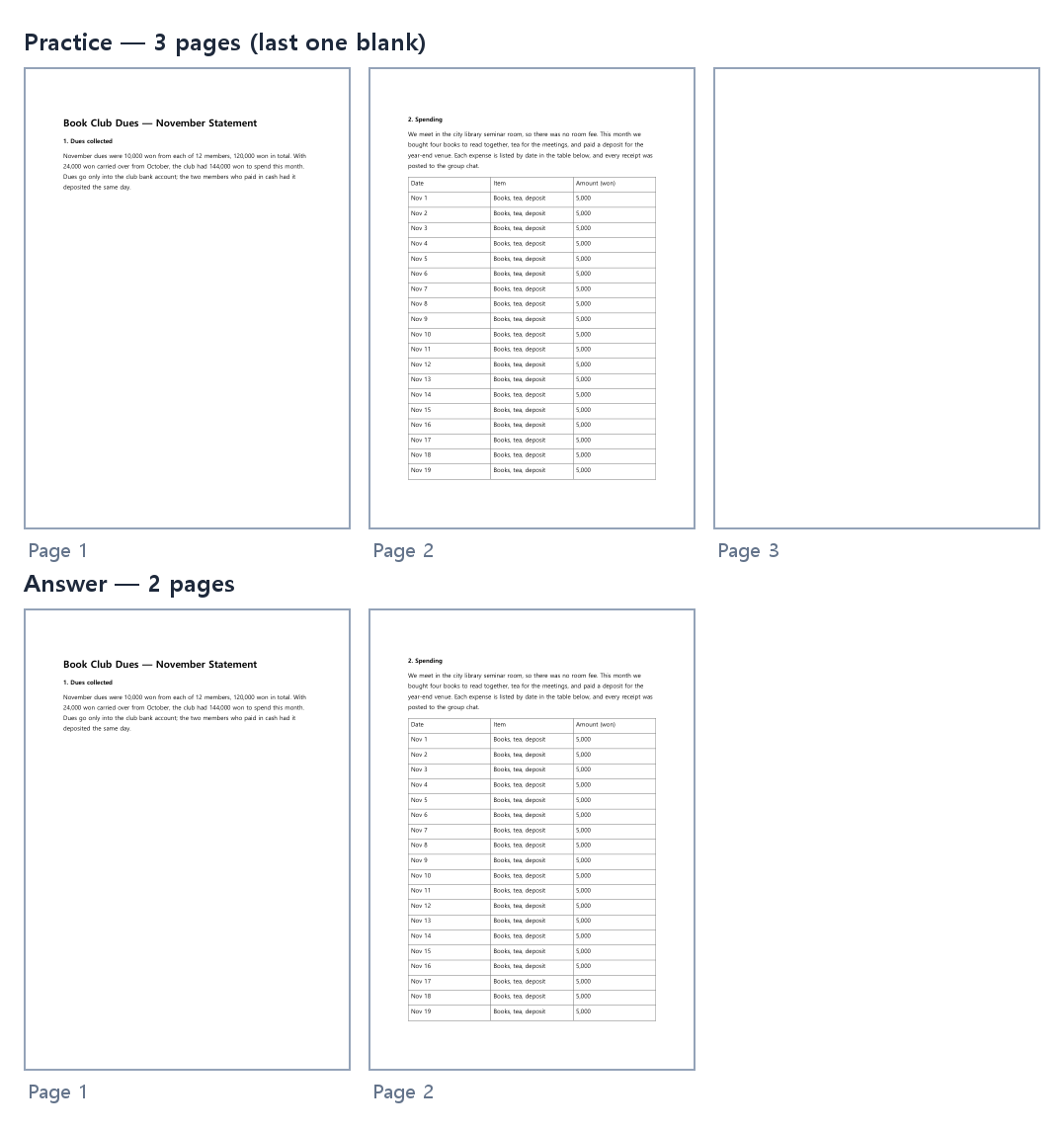
Word on this PC shows Korean menus, so screenshots of the Word window are in the Korean lesson; menu names here follow Microsoft's English documentation. The page counts and positions were measured.
Common snags
- Nothing shows on the blank page: turn on formatting marks (Ctrl+Shift+8) — ¶, page breaks and section breaks become visible
- The page after a table won't go away: that paragraph can't be deleted — set its ¶ to font size 1, and if needed spacing 0 and line spacing Exactly 1 pt
- Deleting a section break changed the page before it: Microsoft's help says the two sections merge and take the formatting of the second one — check both have the same orientation and margins first
- The heading moves every time you edit above it: it was pushed with Enter — delete the empty lines and use Ctrl+Enter
- Pressed Ctrl+Shift+Enter: that's a column break — show formatting marks, delete that line and use Ctrl+Enter
Practice
Open the practice file (3 pages — '2. Spending' pushed with Enter, and a blank page after the table) and try this:
- 1Press Ctrl+Shift+8 to show formatting marks. Find the run of empty ¶ on page 1 and the single ¶ on page 3.
- 2Delete all the empty paragraphs on page 1 and press Ctrl+Enter in front of '2. Spending'.
- 3Select the ¶ on page 3 and set the font size to 1 — the status bar should say page 2 of 2.
- 4Add a few lines after the first paragraph on page 1. If '2. Spending' stays at the top of page 2, you're done.
The answer file uses a page break instead of the Enters, and sets the paragraph after the table to font size 1, spacing 0 and line spacing Exactly 1 pt — 2 pages.
FAQ
Q. Why can't I delete a blank page in Word?
Show formatting marks (Ctrl+Shift+8) and look at what's on it. Empty ¶, a page break or a section break can be deleted. If it's the single ¶ right after a table, it can't be deleted — set it to font size 1. That removed the blank page on this PC.
Q. Why is there a blank page after my table?
Word always keeps a paragraph after a table. When the table fills the page, that paragraph spills onto the next one. Delete didn't remove it here; font size 1 (plus spacing 0 if needed) did.
Q. How do I start text on a new page?
Press Ctrl+Enter (page break) where the new page should start. Enters pushed text along when the page above was edited — five extra lines moved the heading from 84.8 pt to 193.5 pt here, while the Ctrl+Enter version didn't move.
Q. How do I remove all page breaks at once?
Ctrl+H, put ^m in Find what, leave Replace with empty and click Replace All. Section breaks are ^b. Both removed a page each on this PC.
Comments 0
No comments yet. Be the first.
Only members can comment.
Comments with ads, abuse, personal information or illegal content are hidden or removed. Members who post ads, spam, or hateful content are removed from the site, and everything they wrote is deleted. Comments are shown with your nickname. Privacy Policy