How to Add Page Numbers in Word — Bottom Center, Skip the Cover Page, and Fix 'Page X of Y'
The part of page numbering that trips people up most is 'no number on the cover, and start counting at 1 on the next page'. In this lesson a four-page club report (a cover plus three pages of text) gets a bottom-center number, then Different First Page, then Start at 0 — and after every change it was saved as a PDF to read the number printed on each page, in Word for Microsoft 365 on this PC.
Add a page number at the bottom center
The practice file is a made-up book club's November report. Page 1 is a cover with just the title; pages 2–4 hold the text (each separated by a page break). There are no page numbers yet.
- 1On the Insert tab, select Page Number (Header & Footer group).
- 2Choose a location at the bottom of the page and a centered style — Microsoft's help simply says to choose the location and style you want.
- 3The footer opens with the number in it. When you're done, select Close Header and Footer or press Esc (Microsoft's help).
Saved as a PDF, all four pages had 1 · 2 · 3 · 4 at the bottom center. The middle of the number sat at 105.0 mm (the exact center of a 210 mm A4 page), 21.2 mm up from the bottom edge. The cover got a 1 as well — which is where the next section starts.
Skip the cover and start at 1 — Different First Page + Start at 0
| Setting | Page 1 (cover) | Page 2 | Page 3 | Page 4 |
|---|---|---|---|---|
| Bottom-center number only | 1 | 2 | 3 | 4 |
| + Different First Page | (none) | 2 | 3 | 4 |
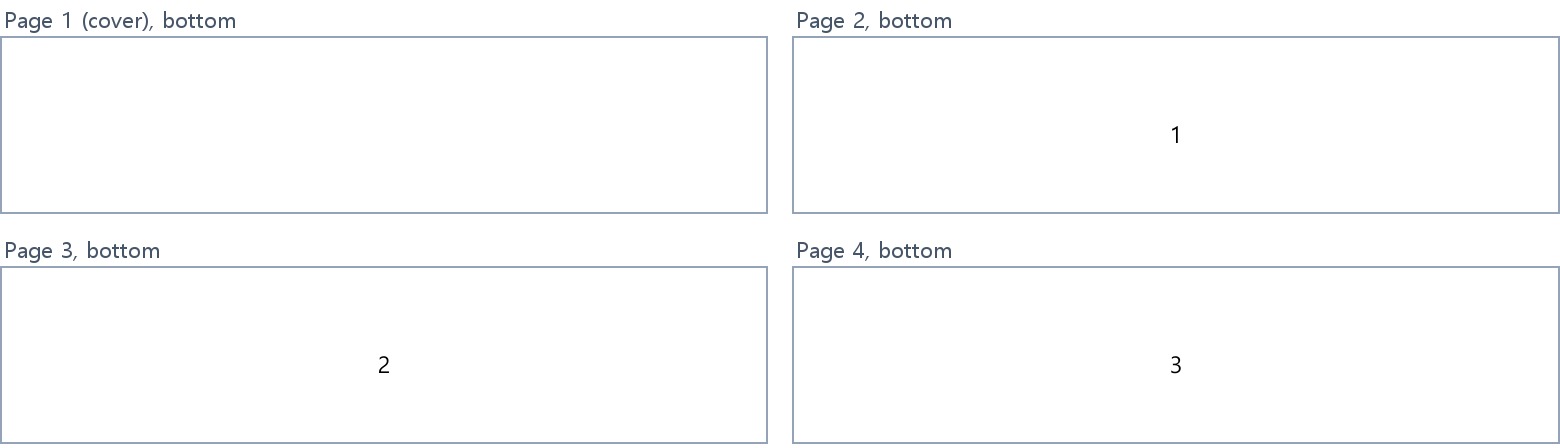
| + Format Page Numbers > Start at 0 | (none) | 1 | 2 | 3 |
Different First Page gives page 1 a footer of its own, so the moment you check it the cover's footer is empty and its number disappears. The counting doesn't change, though — page 2 still said 2. As Microsoft's help describes, go to Page Number > Format Page Numbers and set Start at to 0: the cover becomes page 0 (not shown) and page 2 becomes 1.
In the same dialog, Start at 5 (with Different First Page off) printed 5 · 6 · 7 · 8 — handy when this document continues another one.
Trap 1 — typing the number puts 1 on every page
Double-click the footer and type 1, and on screen it looks like a page number. Saved as a PDF, though, all four pages said 1. Every page shares the same footer, so typed text never changes from page to page. The number that changes is the PAGE field that the Page Number menu inserts — delete the typed digit and insert the number from the menu.
Trap 2 — skip the cover and 'X of Y' ends at 3 / 4
The 'current page / total pages' style is a PAGE field plus a NUMPAGES (total pages) field. With PAGE / NUMPAGES in the footer the pages read 1 / 4 · 2 / 4 · 3 / 4 · 4 / 4. After skipping the cover and starting at 0 as above, pages 2–4 read 1 / 4 · 2 / 4 · 3 / 4 — the last page ended at 3 / 4. The current page now counts from 0, but the total still counts all four physical pages.
| Footer | Page 2 | Page 3 | Page 4 (last) |
|---|---|---|---|
| PAGE / NUMPAGES (cover counted) | 2 / 4 | 3 / 4 | 4 / 4 |
| + Different First Page · Start at 0 | 1 / 4 | 2 / 4 | 3 / 4 ← off by one |
| Total changed to { = { NUMPAGES } - 1 } | 1 / 3 | 2 / 3 | 3 / 3 |
Replacing the total with the formula field { = { NUMPAGES } - 1 } made it 1 / 3 · 2 / 3 · 3 / 3. According to Microsoft's help, field braces are inserted with Ctrl+F9 (not typed), Alt+F9 toggles between field codes and results, and F9 updates a field. In the footer press Alt+F9, find { NUMPAGES }, wrap it in a second pair of braces with Ctrl+F9 so it reads = … - 1, then press F9 (the values in this lesson come from inserting the same fields by automation).
Where people get stuck
- The cover has a number: Header & Footer tab > ☑ Different First Page. The tab only appears while the footer is open (double-click it, or right after inserting a page number)
- Cover skipped but page 2 says 2: the count didn't change — Format Page Numbers > Start at 0
- Every page says 1: the number was typed — delete it and use the Page Number menu
- 'X of Y' doesn't add up: NUMPAGES counts the cover —
{ = { NUMPAGES } - 1 } - Remove page numbers: Page Number > Remove Page Numbers
- Start at 1 after a table of contents, or change the style mid-document: skipping more than the first page needs section breaks; the Continue from previous section / Start at choice in the dialog applies per section (section breaks weren't measured in this lesson)
Practice
Open the practice file (4-page report, no numbers) and try this:
- 1Insert > Page Number > a centered number at the bottom.
- 2With the footer open: Header & Footer tab > ☑ Different First Page.
- 3Page Number > Format Page Numbers > Start at 0 > OK.
- 4Close the footer. If page 2 shows 1 and page 4 shows 3, you match the answer file. Saving as PDF and checking each page works too.
FAQ
Q. Where do I add page numbers in Word?
Insert tab > Page Number (Header & Footer group), then choose where the number goes and its style. The footer opens with the number in it; Close Header and Footer or Esc takes you back to the text.
Q. How do I leave the number off the first page (cover)?
With the footer open, check Different First Page on the Header & Footer tab. On this PC the cover's number disappeared and page 2 still read 2. To make page 2 read 1, set Start at 0 in Format Page Numbers.
Q. Every page shows page number 1.
The number was typed into the footer. Every page shares that footer, so a typed 1 never changes (all four pages said 1 on this PC). Delete it and insert the number from Insert > Page Number.
Q. 'Page X of Y' shows one page too many.
Even with the cover skipped and Start at 0, NUMPAGES counts the cover (the last page read 3 / 4 here). Change the total to a { = { NUMPAGES } - 1 } formula field and it reads 3 / 3.
Comments 0
No comments yet. Be the first.
Only members can comment.
Comments with ads, abuse, personal information or illegal content are hidden or removed. Members who post ads, spam, or hateful content are removed from the site, and everything they wrote is deleted. Comments are shown with your nickname. Privacy Policy