How to save a Word document as PDF — Save As PDF, when comments end up in the PDF, Minimum size, bookmarks and page range
If you've sent a PDF and the reader saw your comments, or the file was too big to upload, this lesson is for you. We saved a made-up 3-page club report (one comment on the title, a link, a large picture and a table) to PDF with several settings in Word (Microsoft 365), then opened each PDF to check comments, bookmarks, picture size, fonts and links.
Save a Word document as PDF — just change the type in Save As
The easiest way to turn a Word document into a PDF is File > Save As > Save as type: PDF (*.pdf). Once the type is PDF, the bottom of the dialog gains Optimize for (Standard · Minimum size), an [Options…] button and Open file after publishing.
The practice file is a 3-page .docx (416,658 bytes). Every PDF we made from it had 3 pages, and the link 'club notice board' stayed a clickable link in the PDF. The font was embedded in the PDF as a subset (only the characters used), so it looks the same on a computer that doesn't have it.
Trap — the comment gets printed into the PDF
The practice document has one comment on the title ('Check the date before sending'), shown in the Comments pane on the right in Word.
Saving this document as is with Save As > PDF printed the comment balloon into the PDF, and the whole page shrank to make room for it. The comment text 'Check the date before sending' could be found inside the PDF.
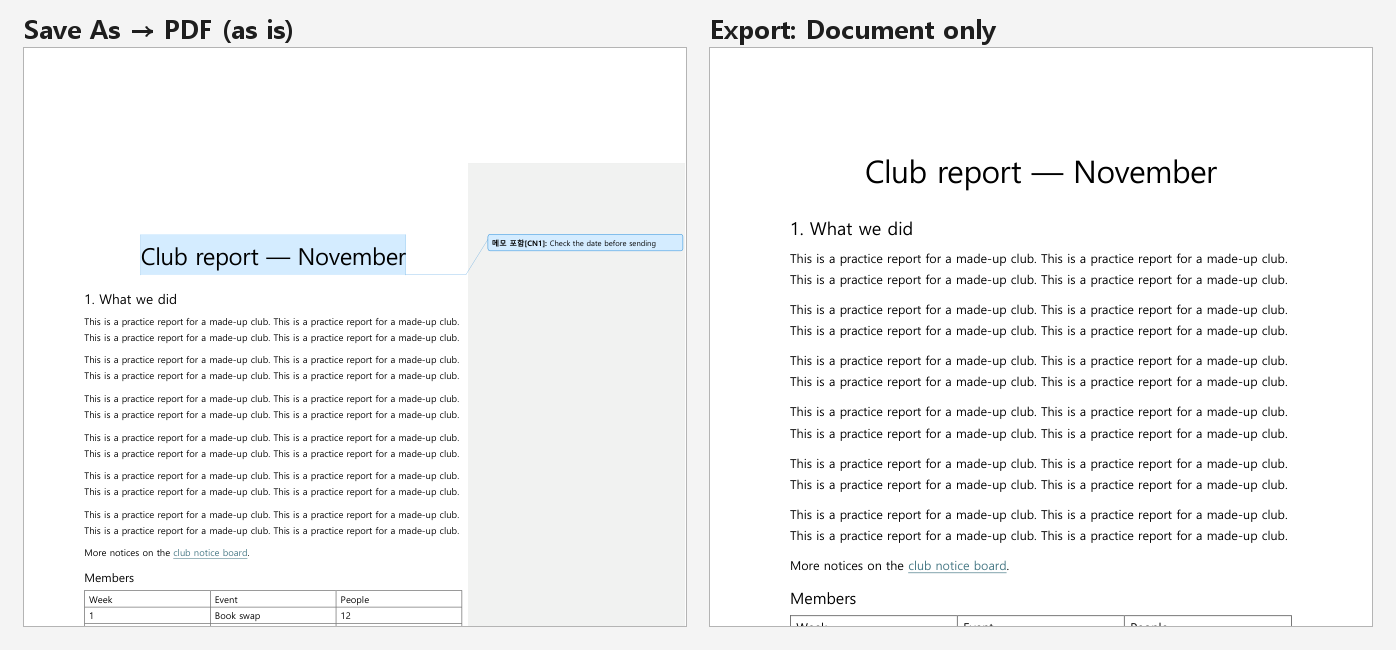
The reason is in [Options…]. For this document with a comment, Publish what was set to 'Document showing markup', with Create bookmarks using: Headings turned on. Pick 'Document', click OK and save — the PDF has no comment.
You could delete the comment before saving, but choosing 'Document' in Options keeps your comment in the .docx while leaving it out of the PDF. Open the PDF once before sending and check there's no comment column on the right.
Size, bookmarks and page range — what each setting changed
We saved the same document to PDF with only the settings changed and compared the results. The picture in the document is a 2400×1600 image.
| Setting | Comment | Bookmarks | Picture in PDF | Size (bytes) |
|---|---|---|---|---|
| As is (showing markup · bookmarks from headings) | Printed | 5 | 944×629 | 153,645 |
| 'Document' · bookmarks from headings · Standard | None | 5 | 1379×919 | 201,059 |
| 'Document' · no bookmarks · Standard | None | 0 | 1379×919 | 200,303 |
| 'Document' · Minimum size | None | 0 | 601×401 | 78,300 |
| 'Document' · page 2 to 2 | None | 0 | (1 page) | 191,990 |
| 'Document' · PDF/A compliant | None | 0 | 1379×919 | 300,847 |
- Minimum size shrank the picture to 601×401 and the file to well under half. Good for on-screen PDFs and upload limits; use Standard for printing.
- Create bookmarks using: Headings turns the five Heading 1 · Heading 2 paragraphs into PDF bookmarks. Turned off, there are none.
- A page range of 2 to 2 gives a one-page PDF — and the link, which was on page 1, isn't in it.
- PDF/A compliant is a long-term archiving format and made the file larger (300,847 bytes).
The link (1) and the embedded font were the same in all six. There was nothing extra to set to keep fonts from breaking for the reader.
Common snags
- Comments show up in the PDF: Options > Publish what is 'Document showing markup' — switch to 'Document'
- The page came out shrunk: room was made for the comment column — same fix, 'Document'
- The PDF is too big: Optimize for 'Minimum size' — this document went from about 201 KB to 78 KB
- No bookmarks in the PDF: Options > Create bookmarks using > Headings, and use Heading 1 · 2 styles in the document
- Only one page as PDF: Options > Page range > Page(s) From · To
Practice
Open the practice file (a made-up club report) and try these steps.
- 1File > Save As > Save as type PDF > save as is, then open the PDF and look for the comment on the right.
- 2Save As > PDF again > [Options…] > Publish what: Document > OK > Save.
- 3Compare the bookmarks pane and page 1 of the two PDFs.
- 4Save once more with Optimize for 'Minimum size' and compare the file sizes.
The answer file is a 3-page PDF saved as 'Document' with bookmarks from headings and Standard size (no comment, 5 bookmarks).
FAQ
Q. Why do comments show up when I save Word as PDF?
In Save As > PDF > [Options…], Publish what is set to 'Document showing markup'. For a document with comments that was the default in Word on this PC, and saving as is printed the comment balloon and shrank the page. Choose 'Document' and save to leave comments out.
Q. How do I make a Word PDF smaller?
Set Optimize for to 'Minimum size (publishing online)' in the Save As dialog. The same document went from 201,059 bytes (Standard) to 78,300 bytes, and the picture inside dropped from 1379×919 to 601×401. Use Standard if the document will be printed.
Q. Will the fonts break when I convert to PDF?
Every PDF we made embedded the font (a subset with just the characters used), so it looks the same on a computer that doesn't have the font installed.
Q. Can I save just one page of a Word document as PDF?
Save As > PDF > [Options…] > Page range > Page(s), then enter From and To. Setting 2 to 2 gave a one-page PDF.
Comments 0
No comments yet. Be the first.
Only members can comment.
Comments with ads, abuse, personal information or illegal content are hidden or removed. Members who post ads, spam, or hateful content are removed from the site, and everything they wrote is deleted. Comments are shown with your nickname. Privacy Policy