How to convert HEIC to PDF on Windows without installing anything — iPhone photos into one PDF, and why the PDF comes out twice the size
When the iPhone camera format is 'High Efficiency', photos are saved as HEIC, so making a PDF for a form or an application usually starts with 'do I have to convert to JPG first?' On Windows 11 with the HEIF Image Extension you can go straight from HEIC to PDF. You hit the same traps as with JPG (cropped edges, sideways portraits), plus two that only HEIC has: the usual JPG PowerShell script stops with an out-of-memory error, and the PDF is 1.3 to 2.3 times bigger than the HEIC files. I tested three methods with three phone-sized HEIC photos.
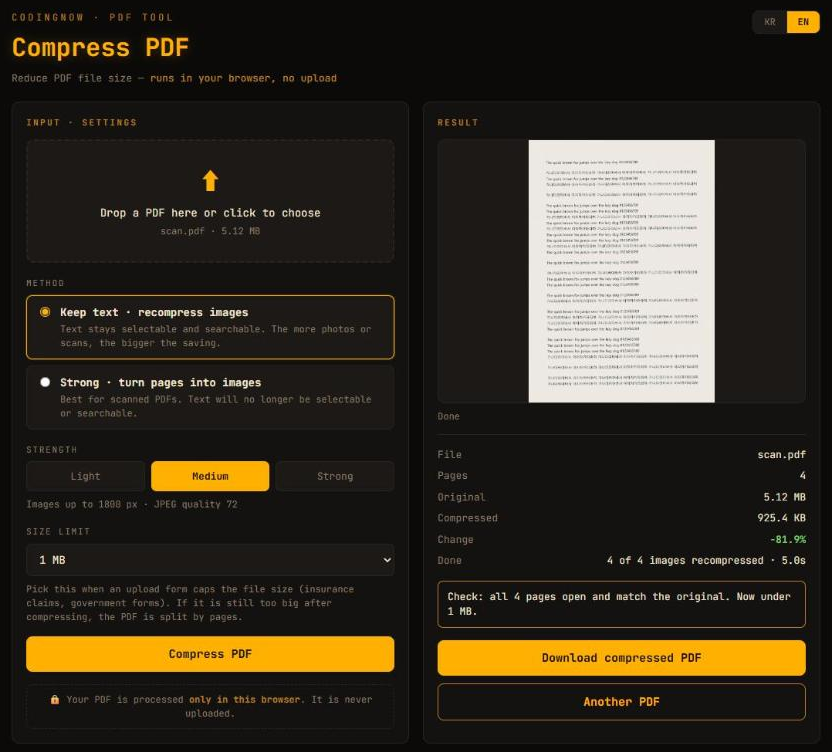
When the PDF made from HEIC photos ends up bigger than the upload limit, shrink it in the browser. The file never leaves your computer, and you can aim for a target size or split it into parts.
- ✓ Free
- ✓ No install, no sign-up
- ✓ Runs in your browser
- ✓ Files are never uploaded
- ✓ Open source
🔒 Your file is never sent to a server or anywhere else — it is processed only in your own browser.
First: HEIC does not go into a PDF as it is
HEIC is how the iPhone 7 and later save photos taken in HEIF (camera format 'High Efficiency'). Apple's support article recommends it and says HEIF and HEVC compress better than JPEG and H.264, so the same visual quality takes less storage. In this test the same three phone-sized photos took 4,192,795 bytes as JPEG (quality 92) and 1,661,018 bytes as HEIC (40%).
The catch is on the PDF side. The 'standard filters' table (Table 6) of the PDF standard ISO 32000-1:2008 lists image compression such as JPEG (DCTDecode), JPEG 2000 (JPXDecode), JBIG2, CCITT fax and Flate. HEVC, which HEIC uses, is not there. When I opened the PDFs from all three methods and pulled the images out, every one was JPEG. Whatever you use, the HEIC is decoded and compressed again as JPEG, and the file grows.
The test files are the phone-sized photos from the JPG-to-PDF guide saved as HEIC: two landscape 4032×3024 (239,755 and 915,084 bytes) and one portrait (506,179 bytes). The portrait one is stored the way a phone held upright would store it: landscape pixels plus rotation information (irot, EXIF orientation 6) saying 'show this turned 90 degrees'. Tested on 2026-10-22 on Windows 11 with HEIF Image Extension 1.2.48.0 and HEVC Video Extension 2.5.33.0.
Method 1: Print to Microsoft Print to PDF (nothing to install)
- 1Select the .heic photos in File Explorer (Ctrl+click).
- 2Right-click > Print. If it is not there, look under 'Show more options'.
- 3In the Print Pictures dialog, change Printer at the top left to Microsoft Print to PDF.
- 4Check paper A4 and the 'Full page photo' layout, and decide on Fit picture to frame.
- 5Print, then choose a folder and name in 'Save Print Output As' and Save.
On this PC the registry registers the same photo printing wizard for .heic as for .jpg under 'Print', and three HEIC files were saved as a three-page PDF (3,404,115 bytes) in 10.1 seconds. Reading HEIC is the job of the Windows HEIF Image Extension; if File Explorer shows no preview for your .heic files, this method is unlikely to work either (installing the extensions is covered in the HEIC to JPG guide).
The Print Pictures dialog first opens on your default printer. On this PC that is a real laser printer, so pressing Print without switching sends it to paper. Once you have switched to the PDF printer, the dialog remembered that choice.
What the defaults do to HEIC photos
- Every page is A4 landscape and portraits lie sideways. All three pages were 297 × 210 mm, and the portrait photo went in turned 90 degrees counter-clockwise (pixel difference 3.50 against the original, 51.19 for clockwise). The rotation information itself was read correctly: the upright photo was laid down again to fill a landscape page.
- Edges are cropped. Fit picture to frame is on by default, so the 4:3 photos were cropped to fill A4. Both landscape photos kept only the middle 2,846 of 3,024 rows (94.1%) (pixel difference: centre crop 3.61 and 2.98, stretch 11.74 and 10.09).
- Each photo is cut into strips and re-compressed as JPEG. Inside the PDF one photo was six 4032×500 strips plus one 4032×24 strip, all JPEG.
Method 2: a PowerShell script that reads HEIC through the Windows decoder
Feed .heic files to the PowerShell script from the JPG-to-PDF guide and it stops on the first photo with OutOfMemoryException ('Out of memory.'). Nothing is short of memory: the System.Drawing (GDI+) library that script uses cannot read HEIC, and the message does not tell you so.
The script below changes only how the photo is read. Opening a .heic with the WPF imaging built into Windows hands it to the HEIF Image Extension's decoder ('Microsoft HEIF Decoder'); the script saves that as a JPEG in memory and draws it on Microsoft Print to PDF as before. The printer is named in the script, so nothing can go to paper.
Add-Type -AssemblyName System.Drawing, PresentationCore
$folder = "C:\Users\you\Pictures\iphone"        # folder with the HEIC photos (full path)
$out    = "C:\Users\you\Pictures\photos.pdf"    # PDF to create (full path)
$q      = 92                                    # JPEG quality; lower = smaller PDF (80 gave about 2/3)
$files  = @(Get-ChildItem "$folder\*" -Include *.heic, *.heif | Sort-Object Name | ForEach-Object { $_.FullName })

function Load-Photo($path) {   # System.Drawing cannot read HEIC: decode with the Windows HEIF extension (WIC), keep a JPEG in memory
  $src = [System.Windows.Media.Imaging.BitmapDecoder]::Create([Uri]$path, 'None', 'OnLoad').Frames[0]
  $enc = New-Object System.Windows.Media.Imaging.JpegBitmapEncoder
  $enc.QualityLevel = $q
  $enc.Frames.Add([System.Windows.Media.Imaging.BitmapFrame]::Create($src))
  $ms = New-Object System.IO.MemoryStream
  $enc.Save($ms)
  [System.Drawing.Image]::FromStream($ms)
}

$pd = New-Object System.Drawing.Printing.PrintDocument
$pd.PrinterSettings.PrinterName = "Microsoft Print to PDF"   # name the PDF printer so nothing goes to paper
$pd.PrinterSettings.PrintToFile = $true
$pd.PrinterSettings.PrintFileName = $out
$pd.DefaultPageSettings.PaperSize = $pd.PrinterSettings.PaperSizes | Where-Object { $_.Kind -eq "A4" } | Select-Object -First 1
$pd.DefaultPageSettings.Margins = New-Object System.Drawing.Printing.Margins 40, 40, 40, 40   # about 1 cm
$i = 0
$pd.add_QueryPageSettings({                         # landscape photo -> landscape page, portrait -> portrait
  $img = Load-Photo $files[$script:i]
  $_.PageSettings.Landscape = ($img.Width -gt $img.Height)
  $img.Dispose()
})
$pd.add_PrintPage({                                 # fit inside the margins, no cropping, centred
  $img = Load-Photo $files[$script:i]
  $m = $_.MarginBounds
  $k = [Math]::Min($m.Width / $img.Width, $m.Height / $img.Height)
  $w = $img.Width * $k; $h = $img.Height * $k
  $_.Graphics.DrawImage($img, [single]($m.X + ($m.Width - $w) / 2), [single]($m.Y + ($m.Height - $h) / 2), [single]$w, [single]$h)
  $img.Dispose()
  $script:i++
  $_.HasMorePages = ($script:i -lt $files.Count)
})
if (-not $pd.PrinterSettings.IsValid) { "Microsoft Print to PDF not found" } else { $pd.Print(); "Saved: $out" }- 1Put the .heic files in one folder. Pages follow file-name order (iPhone names IMG_0001, IMG_0002 … follow shooting order).
- 2Open Windows PowerShell from the Start menu (no admin rights needed).
- 3Change $folder and $out, paste the whole thing and press Enter. 'Saved:' means it is done.
Result: an A4 PDF with pages landscape, portrait, landscape in 3.5 seconds. The portrait photo was turned upright to 3024×4032 by the decoder (which then reports orientation 1) and sat straight on a portrait page, uncropped inside 1 cm margins. At quality 92 the PDF was 3,878,114 bytes, almost exactly the in-memory JPEGs (3,885,093), so the JPEGs seem to go in without another round of compression. At quality 80 it was 2,468,833 bytes.
This script is for .heic and .heif only. If JPGs are mixed in, convert those with the JPG-to-PDF script instead; reading a JPG this way compresses it once more. If you save the code as a .ps1 file, use UTF-8 with BOM so Windows PowerShell 5.1 reads non-English paths correctly.
Method 3: Python Pillow + pillow-heif
Pillow on its own cannot open HEIC: Pillow 13.0.0 on this PC raised cannot identify image file (UnidentifiedImageError). Install and register the pillow-heif plugin (1.8.1).
from glob import glob
from PIL import Image
import pillow_heif                               # pip install pillow pillow-heif
pillow_heif.register_heif_opener()               # without this line: UnidentifiedImageError

files = sorted(glob("*.heic"))
pages = [Image.open(f).convert("RGB") for f in files]
pages[0].save("photos.pdf", save_all=True, append_images=pages[1:],
resolution=300, quality=92) # without resolution each page is 1.4 m wide- Rotation is handled for you. The portrait photo opened as 3024×4032 through pillow-heif; unlike JPG there was no need to call exif_transpose.
- Leave out resolution and the pages are huge. By default pixels count as 72 dpi, giving 1,422 × 1,067 mm pages. With resolution=300 they were 341 × 256 mm.
- The default re-encodes at quality 75. The image inside the PDF was byte-for-byte the same as saving the photo as a quality-75 JPEG (487,575 bytes). The default save gave 2,172,718 bytes (1.31 times the HEIC), the smallest of the three, in 0.64 seconds. With quality=92 it was 3,874,080 bytes.
Comparison: why the PDF is bigger than the HEIC
| Method | Install | Page orientation | Edges | Image in the PDF | PDF of 3 photos |
|---|---|---|---|---|---|
| Print to PDF (defaults) | None (HEIF extension) | All A4 landscape (portraits sideways) | About 6% cropped | JPEG, 7 strips each | 3,404,115 bytes |
| PowerShell script, quality 92 | None (HEIF extension) | Per photo | Whole, 1 cm margins | One JPEG each | 3,878,114 bytes |
| PowerShell script, quality 80 | None (HEIF extension) | Per photo | Whole, 1 cm margins | One JPEG each | 2,468,833 bytes |
| Python Pillow + pillow-heif (defaults) | Python + 2 packages | Photo shape (1.4 m pages) | Whole | JPEG, quality 75 | 2,172,718 bytes |
The three HEIC files came to 1,661,018 bytes, so even the smallest PDF was 1.3 times that. A PDF cannot use the HEVC compression that packs the same picture into fewer bytes, so the size goes up the moment it becomes JPEG. If there is an upload limit, rather than starting from a low quality, it is easier to make the PDF at around quality 92 and bring it under the limit with the PDF compressor while you watch the result.
On iPhone and Mac
For photos you have not taken yet, removing the cause is simplest. Apple's support article on HEIF and HEVC media gives Settings > Camera > Formats > Most Compatible; new photos are then JPEG. The same article says photos imported to a PC over USB may be converted to JPEG (turn on 'Keep Originals' under Settings > Apps > Photos to stop that), and that photos shared by AirDrop, Messages or email may be sent as JPEG automatically when the receiving device does not support HEIF.
On a Mac, Apple's guide 'Combine files into a PDF on Mac' says to select the photos in the Finder, Control-click and choose Quick Actions > Create PDF. The files go into the PDF in the order you selected them. I had no Mac to measure size or orientation.
I did not cover making the PDF on the iPhone itself, because I could not find the steps in Apple's official guides.
When the result looks wrong: check in this order
- 1'Out of memory' or UnidentifiedImageError — the tool cannot read HEIC. Use the HEIC script here or pillow-heif. If the print dialog shows no picture, check the HEIF Image Extension first.
- 2Portrait photos are sideways — the print dialog does not change orientation per photo. Use the PowerShell script.
- 3Edges are cut off — turn off Fit picture to frame and save again.
- 4The PDF is bigger than the photos — that is expected (see the comparison). For an upload limit, lower $q in the script or shrink it with the PDF compressor.
FAQ
Q. Do I have to convert HEIC to JPG before making the PDF?
Not on Windows 11 with the HEIF Image Extension: both Print and the script here took .heic directly. The images become JPEG inside the PDF anyway, so a separate JPG step only adds one more round of compression.
Q. Why is the PDF bigger than the HEIC files?
HEVC, the compression inside HEIC, is not one of the PDF standard's image filters, so the photos are re-compressed as JPEG. In this test three HEIC files of 1,661,018 bytes became PDFs of 2,172,718 to 3,878,114 bytes.
Q. My portrait photos are lying on their side.
The print dialog's 'Full page photo' layout makes every page A4 landscape and turns portraits sideways. The PowerShell script here sets the page orientation per photo, so portraits sit upright on portrait pages.
Q. Can I just use an online converter?
Chrome has no HEIC decoder (measured in the HEIC to JPG guide), so converter sites usually upload your photos and process them on a server. For ID cards or documents, making the PDF on your own PC as shown here is safer.
Q. Does this work for HEIC photos from a Samsung phone?
For a .heic file the Windows steps are the same. The test files here were HEIC files made on Windows, so differences in file structure between phone models were not checked.
When the PDF made from HEIC photos ends up bigger than the upload limit, shrink it in the browser. The file never leaves your computer, and you can aim for a target size or split it into parts.
- ✓ Free
- ✓ No install, no sign-up
- ✓ Runs in your browser
- ✓ Files are never uploaded
- ✓ Open source
🔒 Your file is never sent to a server or anywhere else — it is processed only in your own browser.
Comments 0
No comments yet. Be the first.
Only members can comment.
Comments with ads, abuse, personal information or illegal content are hidden or removed. Comments are shown with your nickname. Privacy Policy