Windows Keyboard Shortcuts Worth Memorizing (Windows 11 & 10)
Shortcut lists are everywhere, but nobody memorizes two hundred of them. About twenty make a real difference; the rest you read once and never use. This guide keeps only the ones worth the muscle memory and groups them by situation. Learn the first five and you will stop dragging windows around with the mouse.
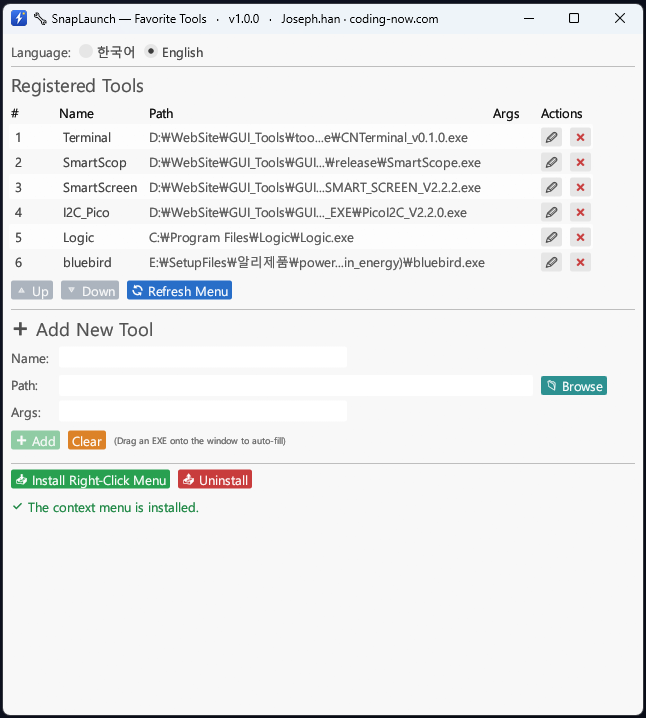
For when shortcuts are not enough: pin the apps you open all day to the desktop right-click menu and launch them in two clicks.
- ✓ Free
- ✓ Free Windows program (download and run)
- ✓ Open source
The five to learn first
These five come up several times a day. The Win key is the one with the window logo, at the bottom left between Ctrl and Alt.
| Shortcut | What it does | When you want it |
|---|---|---|
Win + E | Open File Explorer | Instead of hunting for a folder on the desktop |
Win + Shift + S | Capture any region of the screen | Sending someone part of what you see |
Win + V | Open the list of things you copied | Pasting several items in turn |
Win + Tab | Task view — every open window at once | Too many windows to keep track of |
Alt + Tab | Switch to the previous window | Going back and forth between two windows |
Hold Alt and tap Tab repeatedly to walk through the open windows, then release on the one you want. A quick tap and release just toggles between the last two.
Arranging windows without the mouse
If you often read one window while typing into another, this group is where the time goes. Resizing by dragging edges turns into two keystrokes.
| Shortcut | What it does |
|---|---|
Win + Left / Win + Right | Snap the current window to the left or right half |
Then Win + Up / Win + Down | Shrink that half into a quarter of the screen |
Win + Up | Maximize |
Win + Down | Restore, then minimize on a second press |
Win + Shift + Left/Right | Move the window to the next monitor |
Win + Z | Snap layouts — pick a split arrangement (Windows 11) |
Win + Home | Minimize everything except the window in front |
Win + D | Show the desktop; press again to bring everything back |
After snapping a window to one side, Windows offers the remaining windows for the other half. Click one and both are arranged in a single step.
Virtual desktops — keep work and personal apart
A way to get more screens without buying another monitor. Keep work windows on desktop 1 and personal ones on desktop 2, and sharing your screen in a call becomes far less nerve-racking.
| Shortcut | What it does |
|---|---|
Win + Ctrl + D | Create a new virtual desktop |
Win + Ctrl + Left/Right | Move to the next desktop |
Win + Ctrl + F4 | Close the current desktop (its windows move to the next one) |
Win + Tab | Task view — desktops and open windows together |
To move a window to another desktop, open task view with Win + Tab and drag the window preview onto the desktop thumbnail at the top.
Screenshots and screen recording
| Shortcut | What it does | Where it ends up |
|---|---|---|
Win + Shift + S | Capture a selected region | Clipboard (click the notification to save a file) |
Win + PrtSc | Capture the whole screen | Saved to Pictures > Screenshots |
Alt + PrtSc | Capture only the active window | Clipboard |
Win + G | Open Game Bar (recording, performance) | On-screen panel |
Win + Alt + R | Start / stop screen recording | Videos > Captures |
In Windows 11 the PrtSc key opens the Snipping Tool by default. To get the old behaviour — the whole screen straight to the clipboard — turn that option off under Settings > Accessibility > Keyboard.
Copy and paste, one level up
| Shortcut | What it does |
|---|---|
Ctrl + C / Ctrl + X / Ctrl + V | Copy / cut / paste |
Ctrl + Z / Ctrl + Y | Undo / redo |
Ctrl + Shift + V | Paste as plain text (in apps that support it) |
Win + V | Clipboard history — pick from recent copies |
Win + . (period) | Emoji, symbols and special characters |
Ctrl + Shift + V strips fonts, colors and links from text copied off the web. Not every program supports it; in apps with their own paste menu, such as Word, choosing 'Keep Text Only' gives the same result.
The first time you press Win + V you get a prompt with a Turn on button. History only starts building after that. On a shared PC, consider leaving it off — passwords you copy would be listed too.
Inside File Explorer
| Shortcut | What it does |
|---|---|
Win + E | Open File Explorer |
Ctrl + N | Open the current folder in a second window |
Ctrl + Shift + N | Create a new folder |
Alt + Up | Go to the parent folder |
Alt + Left / Alt + Right | Back / forward |
F2 | Rename the selected file |
F5 | Refresh |
Alt + Enter | Open properties (size, full path) |
Shift + Delete | Delete permanently, skipping the Recycle Bin |
Files removed with Shift + Delete do not go to the Recycle Bin and are hard to get back. When you are in a hurry, plain Delete and an occasional empty-the-bin is the safer habit.
Settings and getting out of trouble
| Shortcut | What it does |
|---|---|
Ctrl + Shift + Esc | Task Manager, directly — when a program is frozen |
Win + L | Lock the screen when you step away |
Win + I | Open Settings |
Win + R | Run box (type cmd, control, and so on) |
Win + X | Quick link menu — Terminal, Device Manager, power options |
Win + S | Open search |
Win + A | Quick settings (Wi-Fi, volume, brightness); Action Center on Windows 10 |
Win + P | Switch display mode — projectors and second monitors |
Win + Ctrl + Shift + B | Restart the graphics driver when the screen garbles or goes black |
Ctrl + Shift + Esc and Win + Ctrl + Shift + B sit unused for weeks, then save you a reboot the moment the screen freezes. Worth knowing where they are.
When a shortcut does nothing
If the combination is right but nothing happens, something other than Windows has usually grabbed that key first. Work through these in order.
- 1Check whether a background program uses the same combination. Graphics card utilities, video-call apps, game launchers and macro tools are the usual suspects. Quit one temporarily and try again — the culprit shows up fast.
- 2On a gaming keyboard, the Win key lock may be on. It is usually
Fn + Winor a dedicated button, and an indicator light shows when it is active. - 3If function keys misbehave on a laptop, Fn lock may be on. Many models toggle it with
Fn + Esc. - 4If only
Win + Vfails, nothing is broken — the feature is off. Turn it on under Settings > System > Clipboard. - 5When a window running as administrator is in front, some combinations never reach it. Click another window first, then try again.
To make your own launch shortcut for a program, right-click its shortcut icon, open Properties, click the Shortcut key box and press a letter. Windows registers it as Ctrl + Alt + letter.
FAQ
Q. Where is the Win key?
Bottom left of the keyboard, between Ctrl and Alt, marked with the Windows logo. If you use a Mac keyboard with a Windows PC, the Command key acts as the Win key.
Q. Can I remap the built-in Windows shortcuts?
Built-in combinations like Win + E cannot be changed in Settings. You can remap keys with Keyboard Manager in PowerToys, Microsoft's free utility, and you can assign your own launch shortcut to any program through its shortcut icon's properties.
Q. `Win + V` does nothing when I press it.
Clipboard history is off by default. Press Turn on in the prompt that appears, or enable it under Settings > System > Clipboard. Items copied before you turned it on will not appear.
Q. Where do my screenshots go?
Win + Shift + S puts the capture on the clipboard — paste it with Ctrl + V, or click the notification to save it as a file from the Snipping Tool. Win + PrtSc skips that step and writes a file straight to Pictures > Screenshots.
Q. My laptop has no PrtSc key.
On compact keyboards it may need Fn, or be missing entirely. Win + Shift + S captures any region without it, and is usually the nicer option anyway.
For when shortcuts are not enough: pin the apps you open all day to the desktop right-click menu and launch them in two clicks.
- ✓ Free
- ✓ Free Windows program (download and run)
- ✓ Open source
Comments 0
No comments yet. Be the first.
Only members can comment.
Comments with ads, abuse, personal information or illegal content are hidden or removed. Members who post ads, spam, or hateful content are removed from the site, and everything they wrote is deleted. Comments are shown with your nickname. Privacy Policy