How to convert JPG to PDF on Windows without installing anything — combine photos into one PDF without cropped edges or sideways portraits
To send several photos as one PDF, Windows already has Microsoft Print to PDF. Used with its defaults, though, the photo print dialog crops the top and bottom of phone photos and lays portrait photos on their side. I converted the same three phone-sized photos (two landscape, one portrait) three ways and compared page orientation, cropping and size against the originals.
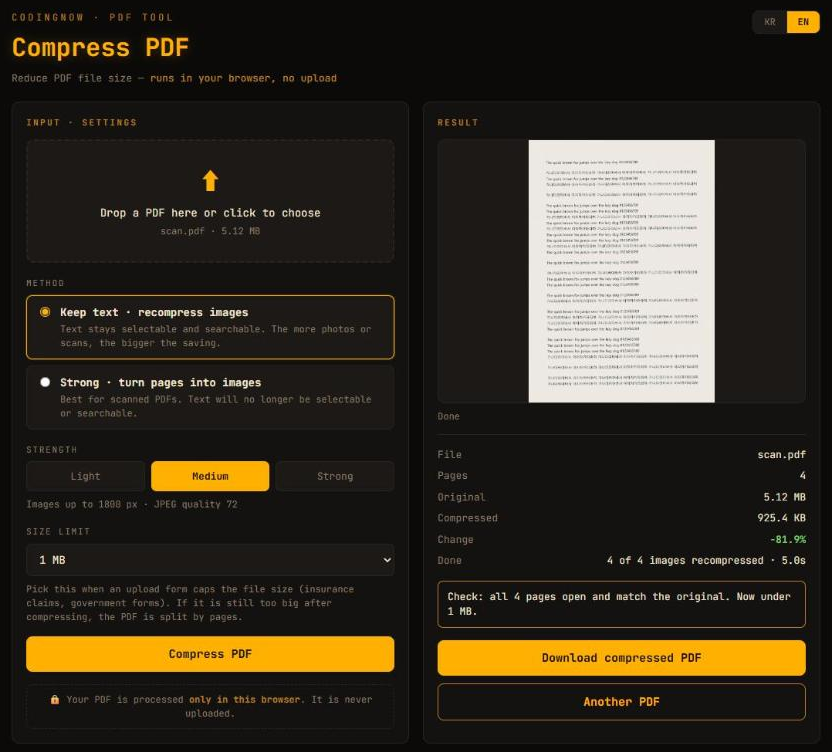
When a photo PDF is bigger than an upload limit, shrink it in your browser. Nothing is uploaded; you can aim for a target size or split the file.
- ✓ Free
- ✓ No install, no sign-up
- ✓ Runs in your browser
- ✓ Files are never uploaded
- ✓ Open source
🔒 Your file is never sent to a server or anywhere else — it is processed only in your own browser.
Three ways, one test set
Search results lead with converter websites, but you can make the PDF on your own PC without uploading your photos. This guide compares three ways with the same photos: Windows' built-in Print, a PowerShell script you paste in, and Python's Pillow.
The test photos were three phone-sized JPEGs made from Windows wallpapers: two landscape 4032×3024, one portrait 3024×4032, 4,192,795 bytes in total. I also made one photo stored sideways with EXIF Orientation 6, the way phones often save portrait shots. Results were checked by page size, embedded image pixels and pixel difference from the originals (Windows 11, 2026-10-21).
Method 1: Print → Microsoft Print to PDF (nothing to install)
- 1Select the photos in File Explorer (Ctrl+click).
- 2Right-click → Print. If it is not in the menu, it is under 'Show more options'.
- 3In the Print Pictures dialog, change Printer to Microsoft Print to PDF.
- 4Check paper A4 and the 'Full page photo' layout (one photo per page), and decide on Fit picture to frame (below).
- 5Print → in 'Save Print Output As', pick a folder and a name and Save.
Three photos saved as a three-page PDF (3,602,432 bytes) in about 10 seconds, with pages in file-name order. The dialog's defaults were A4, 600 dpi quality, the Full page photo layout and Fit picture to frame on. The dialog labels here are from Korean Windows; English Windows names may differ slightly.
The Print Pictures dialog opens on your default printer. On this PC that is a real laser printer, so pressing Print without changing it prints on paper. After switching to the PDF printer once, the dialog remembered it the next time.
Two things the defaults do to your photos
- The edges are cropped. Fit picture to frame fills the page by cropping. Filling A4 (about 1.41:1) with a 4:3 photo removed about 6% from the top and bottom combined — the pixel difference against a centre crop was 1.04 versus 10.81 for a stretch, so it crops rather than stretches. Turned off, the whole photo (280×210 mm) goes in with 8.5 mm side margins.
- Portrait photos turn sideways. Every page in the PDF was A4 landscape (297×210 mm) and portrait photos were rotated 90° counterclockwise — even a single portrait photo, or one placed first. The PDF printer's own default was A4 portrait.
- The 13 x 18 cm (2) layout puts two portrait frames (130×180 mm) on a page, so portraits stay upright but landscape photos are rotated instead. With a mix, one kind always ends up sideways.
Method 2: a PowerShell script that keeps each photo's orientation and the original data
This uses only Windows PowerShell 5.1 and the .NET printing classes in Windows. It still saves through Microsoft Print to PDF, but sets the page orientation per photo, fits each photo inside the margins without cropping, and applies the phone's EXIF rotation. The printer is named in the code, so nothing goes to paper.
Add-Type -AssemblyName System.Drawing
$folder = "C:\Users\you\Pictures\to-pdf"        # folder with the photos (full path)
$out    = "C:\Users\you\Pictures\photos.pdf"    # PDF to create (full path)
$files  = @(Get-ChildItem "$folder\*" -Include *.jpg, *.jpeg, *.png | Sort-Object Name | ForEach-Object { $_.FullName })

function Load-Photo($path) {                       # apply the phone's EXIF rotation
  $img = [System.Drawing.Image]::FromFile($path)
  if ($img.PropertyIdList -contains 0x0112) {
    switch ([int]$img.GetPropertyItem(0x0112).Value[0]) {
      3 { $img.RotateFlip("Rotate180FlipNone") }
      6 { $img.RotateFlip("Rotate90FlipNone") }
      8 { $img.RotateFlip("Rotate270FlipNone") }
    }
  }
  $img
}

$pd = New-Object System.Drawing.Printing.PrintDocument
$pd.PrinterSettings.PrinterName = "Microsoft Print to PDF"   # name the PDF printer so nothing goes to paper
$pd.PrinterSettings.PrintToFile = $true
$pd.PrinterSettings.PrintFileName = $out
$pd.DefaultPageSettings.PaperSize = $pd.PrinterSettings.PaperSizes | Where-Object { $_.Kind -eq "A4" } | Select-Object -First 1
$pd.DefaultPageSettings.Margins = New-Object System.Drawing.Printing.Margins 40, 40, 40, 40   # about 1 cm margins
$i = 0
$pd.add_QueryPageSettings({                         # landscape photo -> landscape page, portrait -> portrait
  $img = Load-Photo $files[$script:i]
  $_.PageSettings.Landscape = ($img.Width -gt $img.Height)
  $img.Dispose()
})
$pd.add_PrintPage({                                 # fit inside the margins, centred, no cropping
  $img = Load-Photo $files[$script:i]
  $m = $_.MarginBounds
  $k = [Math]::Min($m.Width / $img.Width, $m.Height / $img.Height)
  $w = $img.Width * $k; $h = $img.Height * $k
  $_.Graphics.DrawImage($img, [single]($m.X + ($m.Width - $w) / 2), [single]($m.Y + ($m.Height - $h) / 2), [single]$w, [single]$h)
  $img.Dispose()
  $script:i++
  $_.HasMorePages = ($script:i -lt $files.Count)
})
if (-not $pd.PrinterSettings.IsValid) { "Microsoft Print to PDF not found" } else { $pd.Print(); "Saved: $out" }- 1Put the photos in one folder. Pages follow file-name order (prefix names with 01_, 02_ … to control it).
- 2Open Windows PowerShell from Start (no admin rights needed).
- 3Change $folder and $out, paste the whole block and press Enter. 'Saved:' means it is done.
Result: an A4 PDF with pages landscape, portrait, landscape in 3.3 seconds. At 4,195,302 bytes it is almost exactly the photos' 4,192,795 — the embedded images are still 4032×3024, so the original JPEG data appears to go in without re-compression. The EXIF-rotated photo stood upright and a transparent PNG landed on a white page (five-file test: 4,785,132 bytes).
If you save the code as a .ps1 file, save it as UTF-8 with BOM: Windows PowerShell 5.1 garbles non-English comments and paths in a .ps1 without one (measured on this PC). Pasting into the window is fine.
Method 3: Python with Pillow
With Python, Pillow (pip install pillow) does it in a few lines. Tested with Pillow 13.0.0.
from glob import glob
from PIL import Image, ImageOps                  # pip install pillow

files = sorted(glob("*.jpg"))
pages = [ImageOps.exif_transpose(Image.open(f)).convert("RGB") for f in files]   # apply EXIF rotation
pages[0].save("photos.pdf", save_all=True, append_images=pages[1:],
resolution=300, quality=90) # without resolution each page is 1.4 m wide- Without resolution the pages are huge. Pillow counts pixels at 72 dpi, so a 4032×3024 photo became a 1,422×1,067 mm page. With resolution=300 it was 341×256 mm.
- It re-encodes the JPEGs. With defaults the three photos shrank to 2,226,298 bytes, and the first photo's JPEG data went from 914,849 to 491,398 bytes — a quality loss. With quality=95 the PDF grew to 5,307,739 bytes, larger than the photos.
- It ignores EXIF rotation. Without ImageOps.exif_transpose the Orientation 6 photo came out as a sideways landscape page.
- A transparent PNG saved without error, and the transparent area showed as white in the PDF.
Comparison
| Method | Install | Page orientation | Edges | Photo data | PDF of 3 photos |
|---|---|---|---|---|---|
| Print to PDF (defaults) | None | All A4 landscape (portraits sideways) | About 6% cropped | Re-compressed in strips | 3,602,432 bytes |
| Print to PDF, fit off | None | All A4 landscape | Whole, side margins | Re-compressed in strips | 3,589,184 bytes |
| PowerShell script (this guide) | None | Per photo | Whole, 1 cm margins | Original JPEG | 4,195,302 bytes |
| Python Pillow (defaults) | Python + Pillow | Photo shape (1.4 m pages) | Whole | Re-encoded | 2,226,298 bytes |
If size matters, it is easier to make the PDF from the original data and then shrink it to the size you need with the PDF compressor than to lower quality from the start.
When the result looks wrong: check in this order
- 1Paper came out — the dialog was still on your default printer. Switch to Microsoft Print to PDF.
- 2Text or edges are cut off — turn off Fit picture to frame and save again.
- 3Portrait photos are sideways — the print dialog does not change orientation per photo. Use the PowerShell script, or make a separate 13 x 18 cm PDF of the portrait photos.
- 4The file is too big — phone photos came to 3.6 to 4.2 MB for three. Shrink it with the PDF compressor.
FAQ
Q. Can I convert PNG to PDF the same way?
Yes. The PowerShell script includes PNG files, and a transparent PNG landed on a white page. Pillow also saved a transparent PNG without error, with the transparent area showing as white.
Q. How do I change the page order?
In the script and in these tests pages followed file-name order. Prefix the files with 01_, 02_ and so on.
Q. Does the photo quality drop?
The PowerShell result contained the same 4032×3024 photos at almost the original size. The print dialog kept the pixel width but split each photo into seven re-compressed strips, and Pillow's defaults re-encoded the JPEGs to about half the data.
Q. Microsoft Print to PDF is not in my printer list.
It was present by default on this PC; a missing printer was not tested. The script then just reports 'Microsoft Print to PDF not found'.
Q. Can I do this on my phone?
iPhone and Galaxy built-in methods were not covered here, because I could not find the steps in Apple's or Samsung's official guides.
When a photo PDF is bigger than an upload limit, shrink it in your browser. Nothing is uploaded; you can aim for a target size or split the file.
- ✓ Free
- ✓ No install, no sign-up
- ✓ Runs in your browser
- ✓ Files are never uploaded
- ✓ Open source
🔒 Your file is never sent to a server or anywhere else — it is processed only in your own browser.
Comments 0
No comments yet. Be the first.
Only members can comment.
Comments with ads, abuse, personal information or illegal content are hidden or removed. Comments are shown with your nickname. Privacy Policy