BMP to JPG: Why a BMP Is So Big and 3 Ways to Convert It on Windows (Measured)
Someone sends you a picture as a .bmp file, it weighs 6 MB, and the email or upload form won't take it. BMP is Windows' own bitmap format, and it is big for a simple reason: it writes down the color of every pixel with no compression at all, so its size can be calculated to the byte. I saved a screenshot and a photo as BMP on a Windows 11 PC and converted them in three ways. Here are the numbers, the one-line command for a whole folder, and the shortcut that looks like it works but doesn't.
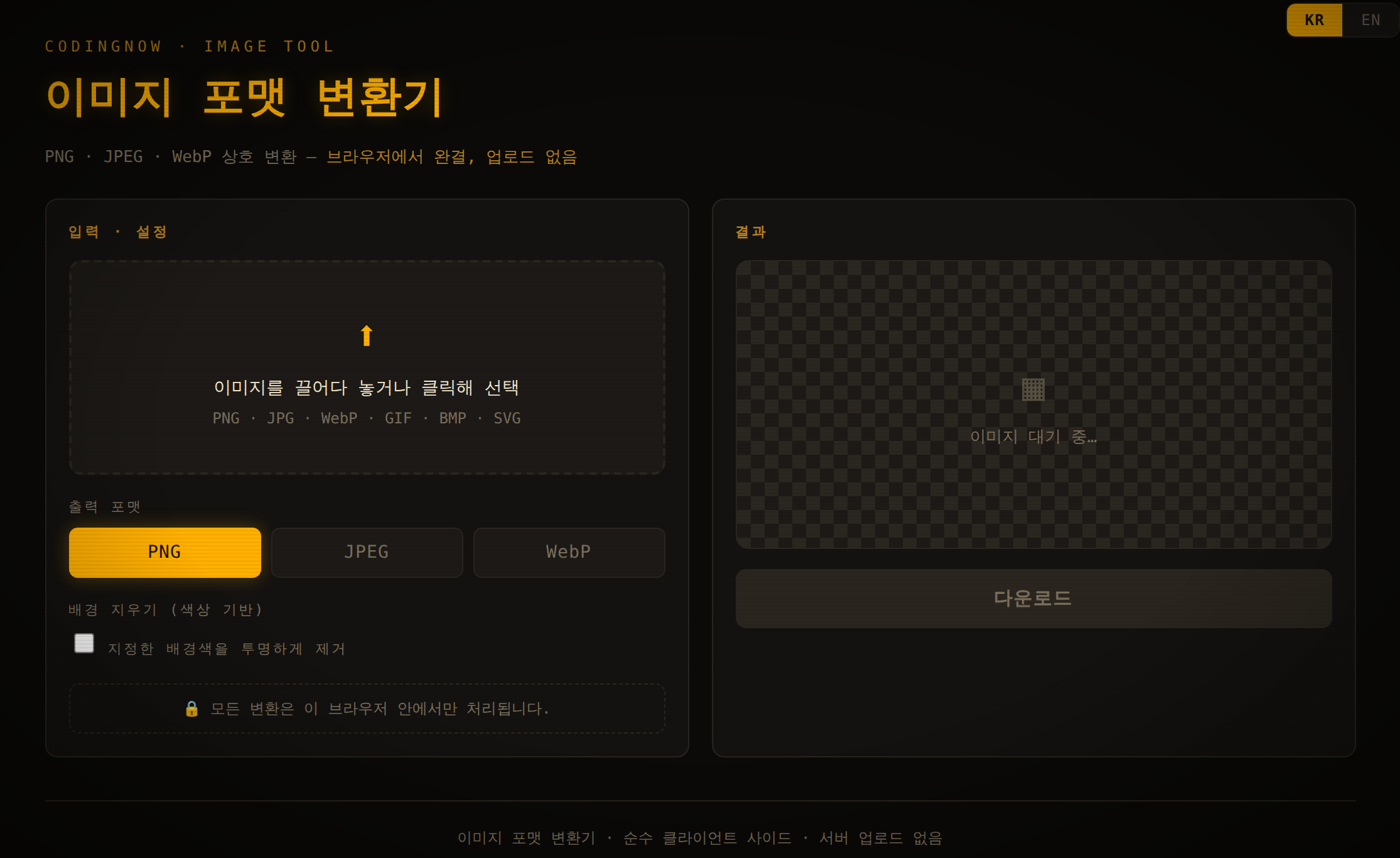
Drop a BMP in and save it as JPEG, PNG or WebP inside your browser. In my test it turned a 5.93 MB BMP into a 71.2 KB JPEG, and the page made no network requests while converting.
- ✓ Free
- ✓ No install, no sign-up
- ✓ Runs in your browser
- ✓ Files are never uploaded
- ✓ Open source
🔒 Your file is never sent to a server or anywhere else — it is processed only in your own browser.
What a BMP file is, and why it is so big
Microsoft Learn's Types of Bitmaps page calls BMP "a standard format used by Windows to store device-independent and application-independent images" and notes that BMP files with 24 bits per pixel are common. The same page describes JPEG as a lossy compression scheme suited to natural scenes such as photographs, and PNG as compressed with no loss of information.
The file layout is simple. Microsoft's Bitmap Storage page lists a file header, an information header, an optional color table, and then the pixel data. For an ordinary 24-bit BMP that means a 14-byte file header (starting with the letters BM), a 40-byte info header, and then the pixels row by row. The BITMAPINFOHEADER reference adds one rule: each row is padded so its length is a multiple of 4 bytes.
So the size of a 24-bit BMP is 54 + row bytes × height, where row bytes is the width × 3 rounded up to a multiple of 4. I created BMPs of four sizes with PowerShell and compared:
| Width × height | Width × 3 | Row (multiple of 4) | Formula = actual file size |
|---|---|---|---|
| 1001 × 100 | 3,003 | 3,004 | 300,454 bytes |
| 1366 × 768 (laptop screen) | 4,098 | 4,100 | 3,148,854 bytes (3.0 MB) |
| 1920 × 1080 (Full HD) | 5,760 | 5,760 | 6,220,854 bytes (5.9 MB) |
| 4032 × 3024 (12 MP phone size) | 12,096 | 12,096 | 36,578,358 bytes (34.9 MB) |
Every file matched the formula to the byte, including the two widths that need padding. A BMP's size depends only on its dimensions, not on what is in the picture - a blank white image and a busy photo of the same size weigh the same.
How much smaller JPG and PNG are
I used two test images: a 1920×1080 screenshot of an app-style screen with text and tables (made for this test), and a 1920×1200 photo (one of the Windows wallpapers). Each was saved as BMP, then saved again as PNG and JPG with PowerShell's System.Drawing, using its default JPEG settings.
The rule of thumb that falls out: screenshots, diagrams and anything with text → PNG; photos → JPG. PNG is lossless, so for a screenshot with large flat areas it shrank the BMP 161 times and beat JPG, while the photo still came out at nearly 2 MB as PNG. JPG made the photo about 30 times smaller.
Way 1: convert in the browser, without uploading
I built a free image converter that runs entirely in the page, and it accepts BMP. I loaded both test BMPs into it and read the results from its info panel:
| File | Original | JPEG (quality 80) | PNG |
|---|---|---|---|
| Screenshot 1920×1080 | 5.93 MB | 71.2 KB (-98.8%) | 82.7 KB |
| Photo 1920×1200 | 6.59 MB | 145.9 KB (-97.8%) | 2.04 MB |
To check the "nothing is uploaded" claim, I compared the browser's list of network requests before and after converting both files four ways. Nothing new was requested - the conversion happened inside the tab. (Its PNG came out larger than PowerShell's, 82.7 KB against 38.6 KB. Both are lossless; the browser's encoder simply compresses less.)
Way 2: Paint's Save as
Windows registers .bmp files to open in Paint (the Paint.Picture file type in the registry on this PC), and Paint's File → Save as offers JPEG and PNG. That is the quickest route for one or two files. I did not run Paint for this guide, so its output sizes are not in the tables above.
Way 3: a whole folder with one PowerShell line
For a folder of BMP screenshots, open PowerShell in that folder and paste this line. It writes a .jpg next to each .bmp and leaves the originals alone:
Add-Type -AssemblyName System.Drawing; Get-ChildItem *.bmp | ForEach-Object { $i = [System.Drawing.Image]::FromFile($PSItem.FullName); $i.Save([IO.Path]::ChangeExtension($PSItem.FullName, '.jpg'), [System.Drawing.Imaging.ImageFormat]::Jpeg); $i.Dispose() }On this PC (Windows PowerShell 5.1) it converted 20 Full HD BMPs - 124,417,080 bytes in total - into 20 JPGs totalling 2,285,560 bytes in 0.3 seconds. For screenshots, change '.jpg' to '.png' and Jpeg to Png to save PNGs instead.
$i.Dispose() matters: System.Drawing keeps the source file locked until the image object is released, so without it you could not delete or move the BMPs until PowerShell closes.
Why renaming .bmp to .jpg doesn't work
It is tempting because it seems to work: Chrome 156 displayed my renamed screen.jpg at its full 1920×1080, since browsers look at the first bytes rather than the name. But the file still began with 42 4D (BM) and was still 6,220,854 bytes. A real JPEG starts with FF D8 FF. Upload checks that read the contents, and every program that trusts the extension, will see a mismatch - and the size problem you started with is untouched.
Which format to choose
| Picture | Save as | In my test |
|---|---|---|
| Screenshot, chart, scanned text | PNG | 6.2 MB → 38.6 KB, lossless |
| Photo | JPG | 6.9 MB → 229 KB (PowerShell default) / 146 KB (quality 80) |
| Needs transparency later | PNG | A 24-bit BMP has no transparency to begin with |
FAQ
Q. What is a BMP file?
Windows' standard bitmap image format. A 24-bit BMP stores three bytes per pixel with no compression, after a 54-byte header, which is why it is so much larger than a JPG or PNG of the same picture.
Q. Does converting BMP to JPG lose quality?
JPG is lossy, so a little detail is lost - usually invisible in photos but sometimes visible around sharp text. For screenshots, save as PNG instead: it is lossless and, in my test, smaller than the JPG as well.
Q. Can I just rename .bmp to .jpg?
No. The contents stay BMP (the file still starts with BM) and the size does not change. Some viewers will still open it, which makes it look like it worked, but forms and programs that check the file will not accept it as a JPEG.
Q. How do I convert many BMP files at once?
Use the one-line PowerShell command above in the folder that holds them. It converted 20 Full HD BMPs in 0.3 seconds on this PC and kept the originals.
Drop a BMP in and save it as JPEG, PNG or WebP inside your browser. In my test it turned a 5.93 MB BMP into a 71.2 KB JPEG, and the page made no network requests while converting.
- ✓ Free
- ✓ No install, no sign-up
- ✓ Runs in your browser
- ✓ Files are never uploaded
- ✓ Open source
🔒 Your file is never sent to a server or anywhere else — it is processed only in your own browser.
Comments 0
No comments yet. Be the first.
Only members can comment.
Comments with ads, abuse, personal information or illegal content are hidden or removed. Members who post ads, spam, or hateful content are removed from the site, and everything they wrote is deleted. Comments are shown with your nickname. Privacy Policy