Microsoft Print to PDF: where the file goes, what to do when it's missing, and why links disappear (tested on Windows 11)
Windows 11 ships with a printer called Microsoft Print to PDF: choose it in any print dialog and the output becomes a PDF file. People get stuck on the same few things: where did the file go, why is the printer missing, why don't the links work. I read this PC's printer settings with PowerShell and compared the same Excel sheet printed to this printer against Excel's own Save as PDF.
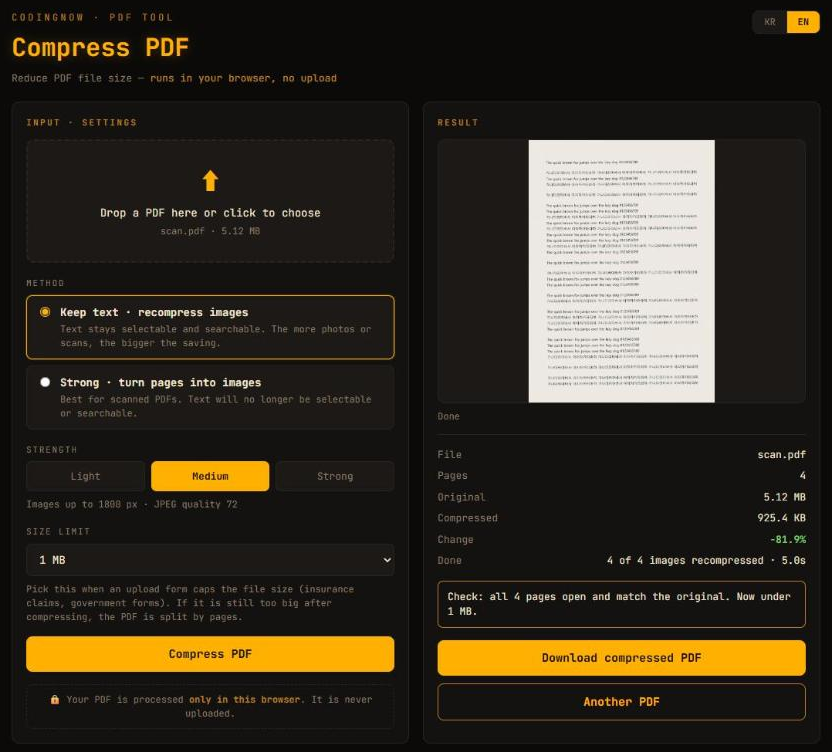
If the PDF you saved is over an upload limit, shrink it in the browser. The file never leaves your computer, and you can aim for a target size or split it into parts.
- ✓ Free
- ✓ No install, no sign-up
- ✓ Runs in your browser
- ✓ Files are never uploaded
- ✓ Open source
🔒 Your file is never sent to a server or anywhere else — it is processed only in your own browser.
How Microsoft Print to PDF was set up on this PC
Microsoft Print to PDF is a virtual printer that 'prints' to a PDF file instead of paper. Anything with a print dialog can use it: Notepad, Excel, the Photos app. I read its settings with PowerShell on a Windows 11 Home (10.0.26300) PC.
| Item | Value on this PC | What it means |
|---|---|---|
| Driver | Microsoft Print To PDF | Built into Windows |
| Port | PORTPROMPT: (local port) | Asks for a file name on every print |
| Default paper, color | A4, color, one-sided | Changeable in the print dialog |
| Paper sizes | 84 | A3, A4, A5, B5 (JIS), Letter, Legal, postcards, envelopes and more |
| Resolution | 600 × 600 | No other value |
| Duplex, max copies | No duplex, 1 copy | Choosing more copies still gives one |
The port being PORTPROMPT: is the key. That port asks where to send the output every time, so this printer has no default save folder at all. When you press Print, 'Save Print Output As' opens, and the folder and name you choose there are the PDF. If you can't find the file, the answer is wherever you pointed that dialog.
How to use it: just switch the printer in the print dialog
- 1Open the document and press Print (Ctrl+P).
- 2Choose Microsoft Print to PDF in the printer list. The dialog starts on your default printer, so change it.
- 3Check the paper size (A4 or Letter) and orientation, then press Print.
- 4In 'Save Print Output As', choose the folder and file name and press Save.
This PC's default printer is a real laser printer: press Print without switching and it goes to paper. Cropped edges and sideways portraits when turning photos and tables into PDFs are covered in the JPG to PDF guide.
When it's missing from the printer list
The printer is an optional Windows feature. On this PC the feature name was Printing-PrintToPDFServices-Features (shown as 'Microsoft PDF로 인쇄' on this Korean Windows), and its InstallState 1. Microsoft's documentation says 1 means Enabled and 2 Disabled. These commands only read the state and need no admin rights.
# Is the feature on? (no admin needed) — InstallState 1 = enabled, 2 = disabled
Get-CimInstance Win32_OptionalFeature -Filter "Name='Printing-PrintToPDFServices-Features'" | Select-Object Caption, InstallState

# Is the printer there?
Get-Printer -Name "Microsoft Print to PDF" | Select-Object Name, DriverName, PortName- 1Open Control Panel > Programs > Turn Windows features on or off.
- 2Find the Microsoft Print to PDF entry and check it if it is off, then press OK.
- 3If it is already checked but the printer is missing, uncheck it and press OK, then check it again and press OK.
If it vanished right after an update, it may be the issue Microsoft documented. The known issues for the April 2025 preview update for Windows 11 24H2 (KB5055627) say the Microsoft Print to PDF printer might no longer appear under Printers & scanners and that enabling the feature can fail with 0x800f0922, and name KB5060829 as the update that addresses it. In that case, getting the latest Windows updates comes first.
If the feature is on but the printer itself is gone and you add it by hand, the values this PC used were port PORTPROMPT: (local port) and driver 'Microsoft Print To PDF'. There is no need to download a driver from another site.
A PDF made by printing has no links
I turned the same Excel sheet (a title, one cell with a link, a Korean and English sentence, 20 rows of numbers) into a PDF two ways: printing to Microsoft Print to PDF, and Excel's own Save as PDF (export).
| Compared | Printed to Microsoft Print to PDF | Excel Save as PDF |
|---|---|---|
| Links | 0 (nothing to click) | 1, kept |
| Search and copy text | Yes | Yes |
| Font name | CIDFont+F1 (renamed) | MalgunGothic (kept) |
| File size | 34,345 bytes | 35,109 bytes |
| Producer | Microsoft: Print To PDF | Microsoft Excel |
| Time | 0.26 s | 0.31 s |
The text survived, so search and copy worked, but the link on the cell was gone. A printer only receives what would be put on paper, so information like links does not seem to get through. For documents where links or a table of contents matter, use the program's Save as PDF or Export instead of printing; Excel, Word and PowerPoint all have it.
Printing 2 copies gives you 1
The printer's maximum copy count was 1. Printing 2 copies from Excel raised no error, but the result was a one-page file identical to the 1-copy print, 34,345 bytes down to the byte. If you need two, copy the saved file. There is no duplex setting on this printer either.
The trap when you use it from a program (Python)
To use this printer from Excel automation (pywin32) you must give Excel's exact printer name. Korean Excel on this PC reported its current printer as 'Ne02:에 있는 Canon …', with the port number (NeXX:) in it, and that number can be read from the registry (HKCU\Software\Microsoft\Windows NT\CurrentVersion\Devices) as 'winspool,Ne00:'. The wording around it depends on Excel's language, so read the current value first and build the name the same way.
import winreg
import win32com.client as win32                   # pip install pywin32

# Excel's printer name includes this PC's port number (NeXX:)
k = winreg.OpenKey(winreg.HKEY_CURRENT_USER, r"Software\Microsoft\Windows NT\CurrentVersion\Devices")
port = winreg.QueryValueEx(k, "Microsoft Print to PDF")[0].split(",")[1]      # e.g. 'Ne00:'

xl = win32.DispatchEx("Excel.Application")
print(xl.ActivePrinter)                           # read the current value first: the format depends on Excel's language
name = f"Microsoft Print to PDF on {port}"        # build it the same way as the value printed above
xl.ActivePrinter = name
assert xl.ActivePrinter == name                   # if it did not change, do not print (the real printer's output lands in the file)

wb = xl.Workbooks.Open(r"C:\work\report.xlsx")
wb.Worksheets(1).PrintOut(1, 1, 1, False, None, True, True, r"C:\work\report.pdf")   # print to file
# to keep links, export instead: wb.Worksheets(1).ExportAsFixedFormat(0, r"C:\work\report.pdf")
wb.Close(False)
xl.Quit()My first attempt passed a wrong name ('Microsoft Print to PDF on PORTPROMPT:') to PrintOut. It was silently ignored and the current printer (a real laser printer) was used. Print to file was on, so nothing came out on paper, but the saved file was that printer's print data, not a PDF. That is why the code above checks that the name really changed before printing. Changing Excel's printer did not change the Windows default printer.
When something's wrong: check in this order
| Symptom | Cause (measured here, Microsoft docs) | What to do |
|---|---|---|
| Not in the printer list | Its Windows feature is off, or the KB5055627 issue | Turn the feature on; update Windows (KB5060829 or later) |
| Can't find the saved file | Port PORTPROMPT: — no default folder | Check where you pointed the save dialog |
| Links in the PDF don't work | Printing leaves 0 links | Use the app's Save as PDF or Export |
| 2 copies come out as 1 | Max copies is 1 | Copy the saved file |
FAQ
Q. Where does Microsoft Print to PDF save the file?
There is no fixed folder. Its port is PORTPROMPT:, so every print opens 'Save Print Output As' and the file goes wherever you choose there.
Q. Microsoft Print to PDF is missing from my printers.
Check that its entry is on under Turn Windows features on or off. Microsoft said the disappearance after the April 2025 update (KB5055627) was addressed in KB5060829.
Q. The links in my PDF don't work.
A PDF made by printing kept no links (0 measured). Making it with Excel's or Word's Save as PDF or Export kept the link.
Q. Can I search the text in the PDF?
Yes. The Excel sheet printed to this printer kept its text, and both Korean and English were searchable and copyable. The font was stored under a new name, CIDFont+F1.
Q. Can it print duplex or several copies?
There is no duplex setting and the maximum is 1 copy. Printing 2 copies gave the same one-copy file.
If the PDF you saved is over an upload limit, shrink it in the browser. The file never leaves your computer, and you can aim for a target size or split it into parts.
- ✓ Free
- ✓ No install, no sign-up
- ✓ Runs in your browser
- ✓ Files are never uploaded
- ✓ Open source
🔒 Your file is never sent to a server or anywhere else — it is processed only in your own browser.
Comments 0
No comments yet. Be the first.
Only members can comment.
Comments with ads, abuse, personal information or illegal content are hidden or removed. Comments are shown with your nickname. Privacy Policy