How to convert MP4 to MP3 on Windows — nothing to install, nothing uploaded
You have a video — a lecture, a recorded call, a clip from your phone — and you only want the sound, as an MP3. Most results send you to a site that wants the whole video uploaded. Windows can do this itself: the encoder is already there and PowerShell can drive it. Here is the block that converts a folder, the sizes I measured at each preset, and the two mistakes that make it fail without a useful message.
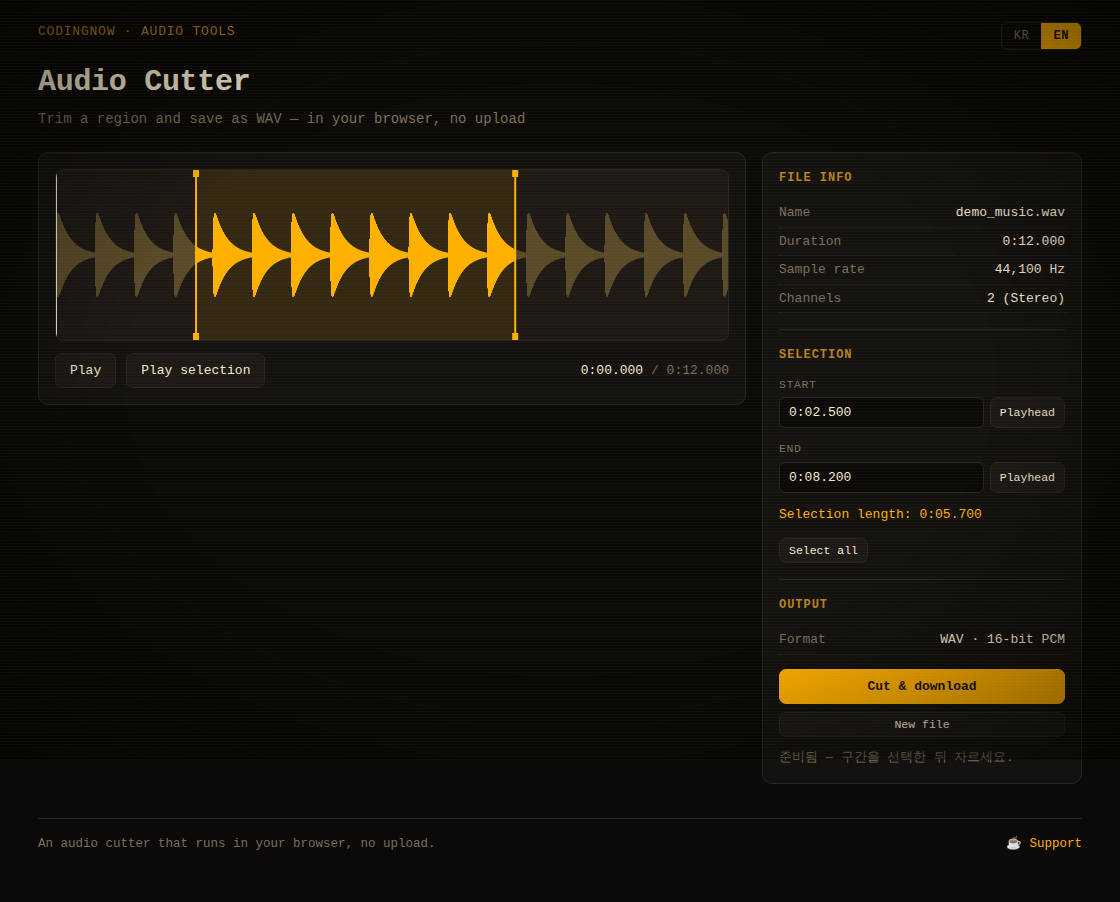
After converting, drop the MP3 in and cut out the section you need. The file never leaves your browser.
- ✓ Free
- ✓ No install, no sign-up
- ✓ Runs in your browser
- ✓ Files are never uploaded
- ✓ Open source
🔒 Your file is never sent to a server or anywhere else — it is processed only in your own browser.
What is inside an MP4
.mp4 is a container — one file holding separate tracks. A typical video carries a picture track and a sound track side by side, and the player reads both at once. Getting an MP3 out of it therefore means two things: dropping the video track, and re-encoding the audio as MP3, because the sound inside an MP4 is almost never MP3 to begin with.
This is what FFmpeg reported for the 55.7-second clip used in every test below — a vertical video with narration, made earlier for a blog post:
| Track | Format | Bitrate |
|---|---|---|
| Video | H.264 (High), 1080×1350, 30 fps | 445 kb/s |
| Audio | AAC LC, 48 kHz, stereo | 317 kb/s |
| Whole file | MP4, 55.72 s | 5,369,904 bytes |
Notice how much of the file is picture. The video track is the bigger share, which is why an audio-only version comes out several times smaller before the MP3 encoder has even chosen a bitrate.
Method 1 — PowerShell, with what Windows already has
Windows ships Media Foundation, the same media pipeline its own apps use, and PowerShell can call it through WinRT. Paste the block below into a PowerShell window, change the folder path on the line marked with a comment, and every MP4 in that folder gets an MP3 beside it. The videos themselves are left alone, and nothing is sent anywhere.
Add-Type -AssemblyName System.Runtime.WindowsRuntime
$ms = [System.WindowsRuntimeSystemExtensions].GetMethods()
$op = ($ms | Where-Object { $_.Name -eq 'AsTask' -and $_.GetParameters().Count -eq 1 -and $_.GetParameters()[0].ParameterType.Name -like 'IAsyncOperation*' })[0]
$ap = ($ms | Where-Object { $_.Name -eq 'AsTask' -and $_.GetParameters().Count -eq 1 -and $_.GetParameters()[0].ParameterType.Name -like 'IAsyncActionWithProgress*' })[0]
function Wait-Op($o, $t) { $x = $op.MakeGenericMethod($t).Invoke($null, @($o)); $x.Wait(-1) | Out-Null; $x.Result }
function Wait-Act($a) { $x = $ap.MakeGenericMethod([double]).Invoke($null, @($a)); $x.Wait(-1) | Out-Null }

[Windows.Storage.StorageFile,   Windows.Storage, ContentType=WindowsRuntime] | Out-Null
[Windows.Storage.StorageFolder, Windows.Storage, ContentType=WindowsRuntime] | Out-Null
[Windows.Media.MediaProperties.MediaEncodingProfile, Windows.Media, ContentType=WindowsRuntime] | Out-Null
[Windows.Media.Transcoding.MediaTranscoder, Windows.Media, ContentType=WindowsRuntime] | Out-Null

$folderPath = "C:\Users\you\Videos"         # folder holding the .mp4 files
$folder  = Wait-Op ([Windows.Storage.StorageFolder]::GetFolderFromPathAsync($folderPath)) ([Windows.Storage.StorageFolder])
$profile = [Windows.Media.MediaProperties.MediaEncodingProfile]::CreateMp3("High")

Get-ChildItem "$folderPath\*.mp4" | ForEach-Object {
    $src  = Wait-Op ([Windows.Storage.StorageFile]::GetFileFromPathAsync($_.FullName)) ([Windows.Storage.StorageFile])
    $dst  = Wait-Op ($folder.CreateFileAsync([IO.Path]::ChangeExtension($_.Name, ".mp3"), 1)) ([Windows.Storage.StorageFile])
    $t    = New-Object Windows.Media.Transcoding.MediaTranscoder
    $prep = Wait-Op ($t.PrepareFileTranscodeAsync($src, $dst, $profile)) ([Windows.Media.Transcoding.PrepareTranscodeResult])
    if ($prep.CanTranscode) { Wait-Act ($prep.TranscodeAsync()); "$($_.Name) -> $($dst.Name)" }
    else { "$($_.Name): $($prep.FailureReason)" }
}
Each converted file prints one line, such as lecture.mp4 -> lecture.mp3. A file that cannot be converted prints its reason instead, and the loop moves on to the next one, so one bad file does not stop the folder.
The Wait-Op and Wait-Act helpers are not decoration. WinRT calls are asynchronous: without the wait, PowerShell moves on while the MP3 is still being written, and anything you do next sees a file that is not finished.
Tested on Windows 11 in Windows PowerShell 5.1 — the powershell.exe that comes with Windows. The same block was used for M4A files in an earlier guide; only the folder and the *.mp4 pattern changed.
Which quality preset — measured
The block uses the High preset. Replace "High" with "Medium" or "Low" to trade quality for size. All three, from the same 55.7-second video:
| Preset | MP3 bitrate | Size | Conversion time |
|---|---|---|---|
| High | 192 kbps | 1,336,823 bytes | 0.49 s |
| Medium | 128 kbps | 889,130 bytes | 0.29 s |
| Low | 96 kbps | 667,506 bytes | 0.28 s |
Encoding took under half a second for nearly a minute of sound; starting PowerShell takes longer than that. For speech — a lecture, a meeting, a voice note — Medium is usually plenty and keeps files small. For music you intend to keep, use High. The MP3 cannot sound better than the AAC it was made from, so there is nothing to gain by going higher than the source.
Method 2 — FFmpeg, if you already have it
FFmpeg is not part of Windows, but plenty of tools bundle it, and it is worth knowing the two commands because each covers a case PowerShell does not. These results come from FFmpeg 7.1 on the same clip.
To MP3, smaller at high quality
ffmpeg -i input.mp4 -vn -c:a libmp3lame -q:a 2 output.mp3-vn drops the video track and -q:a 2 asks the LAME encoder for high-quality variable bitrate. The result was 918,769 bytes, averaging 131 kb/s. Variable bitrate spends fewer bits on quiet stretches, which is why it came out smaller than Windows' fixed 192 kbps while aiming at a similar quality.
Keep the original audio — no re-encoding
ffmpeg -i input.mp4 -vn -c:a copy output.m4a-c:a copy lifts the AAC track out exactly as it is. Nothing is decoded or compressed again, so nothing more is lost: 2,221,936 bytes at the original 317 kb/s. If the place you are sending it accepts M4A — most phones, browsers and messaging apps play it — this is the cleanest result there is. It just is not MP3, so use it only when MP3 is not required.
Why renaming to .mp3 does not work
It is the first thing many people try, so I tested it. I copied the MP4 and renamed the copy to .mp3. Windows labelled it audio/mpeg from the name alone — then reported its length as 0:00 and its bitrate as 0, because the contents are not MP3. The file was still 5,369,904 bytes, the video was still inside, and its first bytes still spelled ftyp, the signature every MP4 starts with.
An upload form that checks only the extension may let it through. Anything that actually decodes MP3 — a car stereo, an older player, a stricter upload check — will not. The extension is a label; the bytes decide the format.
When it fails
A video with no sound. I stripped the audio track from the test clip and gave it to the same code. CanTranscode came back False with the reason Unknown — no mention of the missing track. Screen recordings made without audio capture are the usual way to end up here. Play the video and check for sound before suspecting the script.
Reading the result too early. If you add your own steps after the conversion — moving the MP3, uploading it — keep the waits in place. A file checked before the transcode finishes looks truncated or empty.
Other file types. The block only picks up files matching *.mp4. I did not test other video formats here; change the pattern if you need them, and watch the printed reasons.
The options side by side
| Way | Install | Upload | Result on the test clip | Good for |
|---|---|---|---|---|
| PowerShell (Windows) | None | None | MP3, 667,506–1,336,823 bytes | A folder of videos, no extra software |
| FFmpeg to MP3 | FFmpeg | None | MP3, 918,769 bytes (VBR) | Smaller MP3 at high quality |
| FFmpeg copy to M4A | FFmpeg | None | M4A, 2,221,936 bytes | No extra loss, where M4A is accepted |
| Rename to .mp3 | — | — | Still MP4, 5,369,904 bytes | Nothing — it is not an MP3 |
| Online converter | None | The whole video | Not measured | One-off files you are happy to upload |
Online converters work, but the entire video leaves your PC — including whatever was said in a recorded meeting or a family clip. For anything private, the first two rows do the same job without the file going anywhere.
Only need part of it? Trim after converting
A one-hour lecture as a 192 kbps MP3 is over 80 MB; the ten minutes you actually need is under 15 MB. Convert first, then drop the MP3 into the audio cutter on this site and keep just the section you want. It runs in your browser, so the recording is not uploaded either.
FAQ
Q. Can I just rename the .mp4 to .mp3?
No. Windows read the renamed file as 0:00 long, because the contents were still MP4 with the video inside. Convert it instead — the PowerShell block above takes under a second per minute of audio.
Q. Will the MP3 sound worse than the video?
It is a second lossy step: the AAC is decoded and encoded again as MP3. If you need the sound exactly as it was, copy the AAC out to M4A with FFmpeg instead of making an MP3.
Q. Can I convert a whole folder at once?
Yes. The block already loops over every .mp4 in the folder you set, writes each MP3 beside its video, and prints a reason for any file it skips.
Q. Does this work on Windows 10?
I tested on Windows 11. The block only calls Media Foundation and WinRT transcoding, which are also part of Windows 10, but I did not run it there.
Q. Is anything uploaded?
No. Both methods run on your PC. The PowerShell block only calls components that come with Windows.
After converting, drop the MP3 in and cut out the section you need. The file never leaves your browser.
- ✓ Free
- ✓ No install, no sign-up
- ✓ Runs in your browser
- ✓ Files are never uploaded
- ✓ Open source
🔒 Your file is never sent to a server or anywhere else — it is processed only in your own browser.
Comments 0
No comments yet. Be the first.
Only members can comment.
Comments with ads, abuse, personal information or illegal content are hidden or removed. Comments are shown with your nickname. Privacy Policy