How to convert PNG to ICO on Windows without installing anything — and why the common PowerShell one-liner gives you 16 colors
To use your own image as a program or shortcut icon you need an ICO file, and most search results are upload-it-here converter sites. Windows can do it locally with PowerShell. But the one-liner you will find everywhere gave a 16-color icon or a corrupted file on this PC, and a PNG renamed to .ico would not load at all. Here is what each method actually produced from the same logo, checked with the Windows icon loader and by reading the file back.
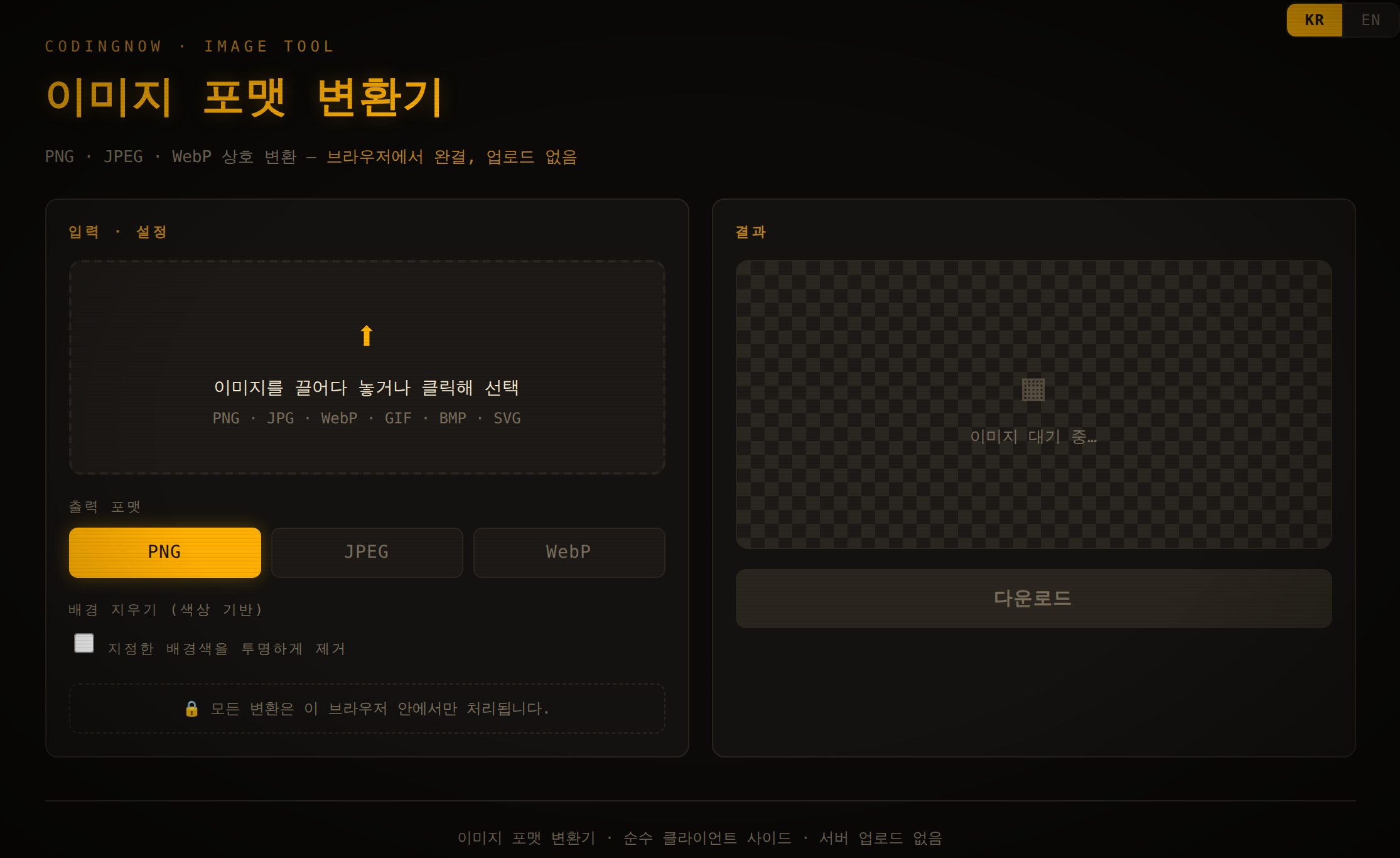
If your source is a JPG or WebP, turn it into a transparent PNG first. Background removal (eyedropper) makes a solid background transparent, all inside your browser. It does not save ICO.
- ✓ Free
- ✓ No install, no sign-up
- ✓ Runs in your browser
- ✓ Files are never uploaded
- ✓ Open source
🔒 Your file is never sent to a server or anywhere else — it is processed only in your own browser.
How ICO differs from PNG
An ICO file is not one picture but a container for several sizes of the same picture. The first 6 bytes are a header (00 00 01 00 plus an image count), then a 16-byte directory entry per image (width, height, color depth, data size, offset), then the image data. Windows picks the size that fits the place and the display scale: title bar, taskbar, Start.
Microsoft's 'Construct your Windows App's Icon' page says apps should have at the bare minimum 16x16, 24x24, 32x32, 48x48 and 256x256, and that when there is no exact match Windows takes the next size up and scales it down. With a 256 image in the file, Windows only ever scales down. Since Windows Vista an ICO entry can hold a PNG directly instead of a BMP, which is how a 256x256 image keeps full 32-bit transparency without a huge file.
The width and height fields in the directory are one byte each, so 256 is stored as 0. That makes 256x256 the largest size an ICO entry can describe.
Why renaming the file is not enough
A PNG starts with 89 50 4E 47 (the PNG signature). Rename it to logo.ico and the bytes stay a PNG, with no ICO header. On this PC the API Windows uses to load .ico files as icons (LoadImage) failed at 16, 32, 48 and 256, and .NET's Icon class threw “Argument 'picture' must be a picture that can be used as a Icon.”.
You can tell whether a .ico is a real ICO from its first four bytes. Paste this into PowerShell with your path:
$b = [IO.File]::ReadAllBytes("C:\Users\you\Pictures\logo.ico")
"{0:X2} {1:X2} {2:X2} {3:X2}  images: {4}" -f $b[0], $b[1], $b[2], $b[3], $b[4]
A real ICO prints 00 00 01 00 and the image count (images: 5 for the file the script below makes). A renamed PNG prints 89 50 4E 47, and the number after it is meaningless.
Method 1: PowerShell, nothing to install (recommended)
This uses only Windows PowerShell and the .NET drawing classes that ship with Windows 10 and 11. It scales the source to five sizes, saves each as PNG in memory, then writes the ICO header and directory by hand around them.
Add-Type -AssemblyName System.Drawing
$src = "C:\Users\you\Pictures\logo.png"   # the PNG to convert (full path)
$out = "C:\Users\you\Pictures\logo.ico"   # the icon to create (full path)
$sizes = 16, 24, 32, 48, 256

$img = [System.Drawing.Image]::FromFile($src)
$pngs = foreach ($n in $sizes) {
  $b = New-Object System.Drawing.Bitmap $n, $n
  $g = [System.Drawing.Graphics]::FromImage($b)
  $g.InterpolationMode = "HighQualityBicubic"
  $k = $n / [Math]::Max($img.Width, $img.Height)        # keep the aspect ratio
  $w = $img.Width * $k; $h = $img.Height * $k
  $g.DrawImage($img, ($n - $w) / 2, ($n - $h) / 2, $w, $h); $g.Dispose()
  $ms = New-Object IO.MemoryStream
  $b.Save($ms, [System.Drawing.Imaging.ImageFormat]::Png); $b.Dispose()
  , $ms.ToArray()
}
$img.Dispose()

$bw = New-Object IO.BinaryWriter([IO.File]::Create($out))
$bw.Write([UInt16]0); $bw.Write([UInt16]1); $bw.Write([UInt16]$sizes.Count)
$offset = 6 + 16 * $sizes.Count
for ($i = 0; $i -lt $sizes.Count; $i++) {
  $n = $sizes[$i] % 256                                  # 256 is stored as 0
  $bw.Write([byte]$n); $bw.Write([byte]$n); $bw.Write([byte]0); $bw.Write([byte]0)
  $bw.Write([UInt16]1); $bw.Write([UInt16]32)
  $bw.Write([UInt32]$pngs[$i].Length); $bw.Write([UInt32]$offset)
  $offset += $pngs[$i].Length
}
foreach ($p in $pngs) { $bw.Write($p) }
$bw.Close()- 1Open Windows PowerShell from Start (no admin rights needed).
- 2Change the $src and $out paths to your files. Use full paths — .NET methods can resolve relative paths against the process folder, not PowerShell's current folder.
- 3Paste the whole block and press Enter. It finishes silently and the .ico appears at $out.
- 4Run the header check above and look for 00 00 01 00 and images: 5.
From a 512x512 transparent logo the script wrote 10,899 bytes holding five 32-bit PNG images (16, 24, 32, 48, 256). LoadImage succeeded at 16, 32, 48 and 256, and the blue inside the circle stayed (37, 99, 235).
The source does not have to be square. The script keeps the aspect ratio, centers the image and leaves the rest transparent. A 300x200 PNG came out as five square images with transparent bands above and below.
If you save code as a .ps1 file, do not save non-English text in it as UTF-8 without a BOM. While testing for this guide, Windows PowerShell 5.1 read such a file in the Korean code page and silently skipped the line after a Korean comment (the size list ended up empty and the icon was 6 bytes). The script above is plain ASCII, so pasting it as is works.
Why the popular PowerShell one-liner gives 16 colors
Search for 'PowerShell png to ico' and this is the snippet you will see most. It is short, but the output was poor.
Add-Type -AssemblyName System.Drawing
$bmp = New-Object System.Drawing.Bitmap "C:\Users\you\Pictures\logo.png"
$icon = [System.Drawing.Icon]::FromHandle($bmp.GetHicon())
$fs = [IO.File]::Create("C:\Users\you\Pictures\logo.ico"); $icon.Save($fs); $fs.Close()
On the 512x512 source it wrote 32,894 bytes while the directory claimed 163,944 bytes of image data — a truncated file. LoadImage failed at every size and Pillow refused it with 'not enough image data'.
Shrink the source to 256x256 first and the same code writes 41,086 bytes that Windows does load. Inside, though, is a single 4-bit (16-color) BMP. The blue (37, 99, 235) became (0, 0, 255) and the soft edge lost every semi-transparent pixel. Why .NET saves it this way is internal and not verified here; these are just the measured results.
It is also the largest file of the three:
Method 2: Python with Pillow, three lines
If you have Python, the Pillow imaging library does it in three lines (pip install pillow). Tested with Python 3.11.9 and Pillow 12.3.0.
from PIL import Image          # pip install pillow
img = Image.open("logo.png")
img.save("logo.ico", sizes=[(16, 16), (24, 24), (32, 32), (48, 48), (256, 256)])
With the five sizes listed, the result was 14,376 bytes, all five stored as PNG, with the same colors and soft edge (2,212 semi-transparent pixels) as the source. Leave out sizes and Pillow writes seven images, 16 through 256, for 21,644 bytes.
- Sizes larger than the source are dropped. A 100x100 source produced only 16, 24, 32, 48 and 64 — no 128 or 256, so the large icon sizes simply are not in the file.
- A non-square source gives non-square icons. A 300x200 PNG was saved as 16x11, 24x16, 32x21 and so on up to 128x85. Pad it to a square with transparency first, as the PowerShell script does.
Comparison
| Method | Install | Result (512 logo) | Windows loads it | Color and alpha |
|---|---|---|---|---|
| Rename to .ico | None | Still a PNG, 19,053 bytes | No | — |
| Popular one-liner (GetHicon) | None | 512 source: truncated file; 256 source: one image, 41,086 bytes | 512: no; 256: yes | 16 colors, soft edges lost |
| PowerShell script (PNG inside) | None | 10,899 bytes; 16, 24, 32, 48, 256 | Yes | Kept (32-bit) |
| Python Pillow | Python + Pillow | 14,376 bytes with sizes; 21,644 default | Yes | Kept (32-bit) |
| Online converter | None | Varies by site | Not tested | Not tested |
Online converters upload your file to their server. That is fine for a public logo; for internal artwork, PowerShell or Pillow keeps everything on your PC.
When the icon looks wrong: check in this order
- 1Header — run the header check. 89 50 4E 47 means it is a renamed PNG; convert it with one of the methods above.
- 2Color depth — colors snapped to primaries and stair-stepped edges point to a 16-color ICO from the GetHicon trick. Rebuild it with PNG images inside.
- 3Source size — scaling a 100x100 source up to 256 with the script raised the semi-transparent edge pixels from 924 to 5,923, which is what blur looks like. Start from 256 px or larger.
- 4Shape and background — a source without alpha (a JPG, for example) makes the background part of the icon, so it shows as a box. Dropping the alpha from the test logo turned its transparent corners black (0, 0, 0), the color hiding under the transparency. Make a transparent PNG first, for example with the image converter's background removal.
FAQ
Q. How many sizes should an ICO contain?
Microsoft recommends at least 16, 24, 32, 48 and 256 for app icons. Without an exact match Windows scales the next size down, so including 256 means it never has to scale up. The PowerShell script and the Pillow example here both write those five sizes.
Q. Can I make a 512 or 1024 px icon?
No. The width and height fields are one byte, so 256 is the limit. A 512 PNG stored as is was listed as 256 in the directory, and Pillow warned 'Image was not the expected size' when opening it. Scale to 256.
Q. Can I just rename the PNG to .ico?
It did not work here. The Windows icon API could not load a renamed PNG at 16, 32, 48 or 256. ICO has its own header and directory, so it needs converting.
Q. My transparent background came out black (or white).
The source had no alpha, or it passed through a format without transparency such as JPG. Dropping the alpha from the test logo filled its transparent pixels with black (0, 0, 0). Recreate a transparent PNG, then convert.
Q. Can Paint save ICO files?
This guide did not check Paint's save formats. The PowerShell script or Pillow are the reliable routes.
If your source is a JPG or WebP, turn it into a transparent PNG first. Background removal (eyedropper) makes a solid background transparent, all inside your browser. It does not save ICO.
- ✓ Free
- ✓ No install, no sign-up
- ✓ Runs in your browser
- ✓ Files are never uploaded
- ✓ Open source
🔒 Your file is never sent to a server or anywhere else — it is processed only in your own browser.
Comments 0
No comments yet. Be the first.
Only members can comment.
Comments with ads, abuse, personal information or illegal content are hidden or removed. Comments are shown with your nickname. Privacy Policy