How to convert PNG to JPG on Windows without installing anything — and keep transparent areas from turning black
You convert PNG to JPG when an upload form only takes JPG or a file has to get smaller. Most search results are converter sites, but Windows PowerShell can do it locally. Convert a transparent PNG the naive way and the transparent areas turn black; convert a screenshot and it barely shrinks. Here are measured results from three PNGs — a photo, a screenshot and a transparent logo — for each method.
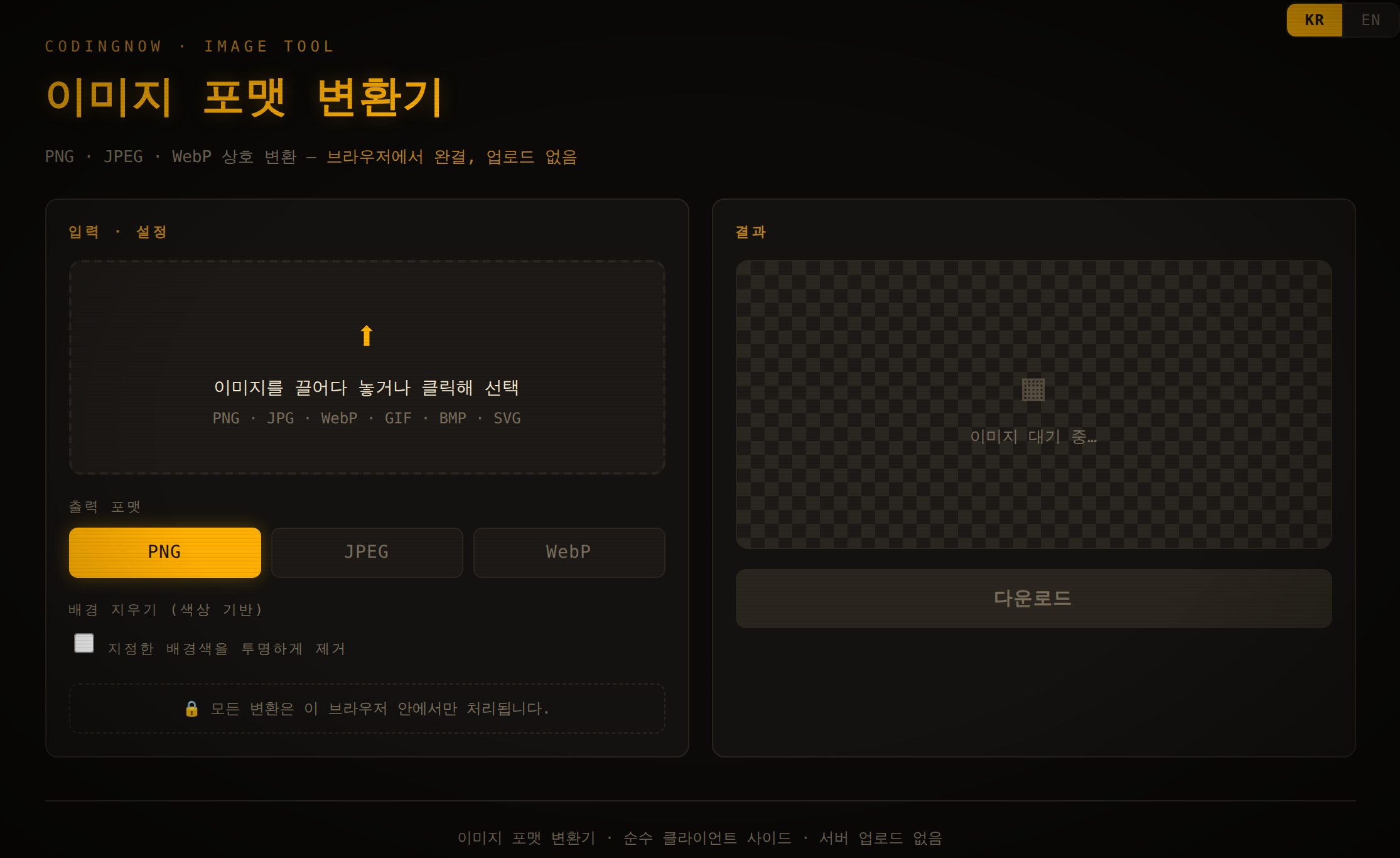
Converts PNG, JPEG and WebP inside your browser. For JPEG output you pick the fill color for transparent areas (white by default) and the quality (80 by default), and the new file size shows right away.
- ✓ Free
- ✓ No install, no sign-up
- ✓ Runs in your browser
- ✓ Files are never uploaded
- ✓ Open source
🔒 Your file is never sent to a server or anywhere else — it is processed only in your own browser.
What is different between PNG and JPG
MDN's image format guide says PNG uses lossless compression with full alpha transparency, while JPEG is lossy and “JPEG does not support an alpha channel.” The same guide recommends JPEG for photographs but lossless formats “for screenshots, diagrams, logos, and line art,” because “blurring and colored fringes around text and sharp edges are very visible.”
Decide why you need JPG first. If an upload form only accepts JPG, convert. If you want a smaller file, it only pays off for photos — in the measurements below a screenshot barely shrank.
What renaming to .jpg does
Renaming photo.png to renamed.jpg left it at 1,010,089 bytes, and both .NET and Python's Pillow still read it as PNG. Some viewers will open it, but the bytes are PNG, so it does not help with size limits or forms that check the format.
You can check whether a .jpg is really a JPG from its first four bytes. Paste this into PowerShell with your path:
$b = [IO.File]::ReadAllBytes("C:\Users\you\Pictures\image.jpg")
"{0:X2} {1:X2} {2:X2} {3:X2}  images: {4}" -f $b[0], $b[1], $b[2], $b[3], $b[4]
A real JPG starts with FF D8 FF (the files made in this guide start FF D8 FF E0); a renamed PNG starts with 89 50 4E 47. Ignore the images number — that part is for ICO files.
Method 1: the CodingNow image converter, in your browser
The simplest route with nothing to install. It lives at coding-now.com/en/image-converter and converts inside the browser without uploading the file (per the tool's description). For JPEG output it defaults to quality 80 on a white (#ffffff) fill, so transparent areas do not turn black.
- 1Drop in or pick the PNG.
- 2Choose JPEG as the output format.
- 3Check the quality slider (80 by default) and the fill color (white by default).
- 4Look at the new size, then download.
Method 2: PowerShell, nothing to install, with a white background and a set quality
This uses only Windows PowerShell and the .NET drawing classes in Windows 10 and 11. It paints a white canvas, draws the PNG on top, then saves a JPEG at the quality you choose.
Add-Type -AssemblyName System.Drawing
$src = "C:\Users\you\Pictures\image.png"   # the PNG to convert (full path)
$out = "C:\Users\you\Pictures\image.jpg"   # the JPG to create (full path)
$quality = 85                                # 0-100, higher = bigger file

$img = [System.Drawing.Image]::FromFile($src)
$bmp = New-Object System.Drawing.Bitmap $img.Width, $img.Height
$g = [System.Drawing.Graphics]::FromImage($bmp)
$g.Clear([System.Drawing.Color]::White)      # transparent areas become white
$g.DrawImage($img, 0, 0, $img.Width, $img.Height)
$g.Dispose(); $img.Dispose()

$jpeg = [System.Drawing.Imaging.ImageCodecInfo]::GetImageEncoders() | Where-Object { $_.MimeType -eq "image/jpeg" }
$p = New-Object System.Drawing.Imaging.EncoderParameters 1
$p.Param[0] = New-Object System.Drawing.Imaging.EncoderParameter ([System.Drawing.Imaging.Encoder]::Quality, [long]$quality)
$bmp.Save($out, $jpeg, $p)
$bmp.Dispose()- 1Open Windows PowerShell from Start (no admin rights needed).
- 2Change the $src and $out paths to your files. Use full paths — .NET methods can resolve relative paths against a different folder than PowerShell's current one.
- 3Adjust $quality if you like (75 to 85 shrank photos plenty).
- 4Paste the whole block and press Enter. It finishes silently and the JPG appears at $out.
| Source | PNG | This script (quality 85) | Formerly transparent corner |
|---|---|---|---|
| Photo 1920x1200 | 1,010,089 bytes | 73,089 bytes (7% of the PNG) | — |
| Screenshot 2230x1366 | 220,409 bytes | 175,317 bytes (80%) | — |
| Transparent logo 512x512 | 19,053 bytes | 13,500 bytes (71%) | White (255, 255, 255) |
Saving directly with $img.Save($out, [System.Drawing.Imaging.ImageFormat]::Jpeg), without the white canvas, turns transparent areas black. That default save also sets no quality: the photo came out at 97,702 bytes, larger than quality 90 (89,243), and the screenshot at 225,598 bytes, larger than the original PNG.
Method 3: Python with Pillow
With Python, Pillow does it (pip install pillow). Tested with Python 3.11.9 and Pillow 12.3.0.
from PIL import Image          # pip install pillow
img = Image.open("image.png")
if img.mode in ("RGBA", "LA", "P"):         # has (or may have) transparency
    img = img.convert("RGBA")
    bg = Image.new("RGB", img.size, (255, 255, 255))
    bg.paste(img, mask=img.getchannel("A"))  # transparent areas become white
    img = bg
img.convert("RGB").save("image.jpg", quality=85)
On the same three sources it produced 75,355 bytes for the photo, 181,423 for the screenshot and 13,764 for the transparent logo, with white corners.
- Saving a transparent PNG directly fails. Image.open("logo.png").save("logo.jpg") stopped with 'cannot write mode RGBA as JPEG'.
- convert("RGB") alone gives black corners. The error goes away but the formerly transparent corner became (0, 0, 0). Paste onto white first, as in the code above.
- Without quality it saves at 75. The photo came out at 58,408 bytes, almost the same as PowerShell at quality 75 (58,468).
Why transparent areas turn black
Transparent pixels still store a color. In the test logo they were (0, 0, 0, 0) — black with zero opacity. JPEG has nowhere to store opacity, so the opacity is dropped and the hidden black shows. Other PNGs may store a different color under their transparency, so the result can differ.
If you need the transparency, do not convert to JPG — keep the PNG. Removing a background is covered in the guide on making an image background transparent.
Why photos shrink and screenshots do not
JPEG is good at images where colors blend smoothly, like photos. A screenshot is already compact as PNG: it has more pixels than the photo (2230x1366 vs 1920x1200) yet its PNG was 220,409 bytes, a fifth of the photo's 1,010,089. So JPEG saves less and adds colors that were never there around the text.
The screenshot had 14,144 distinct colors; at quality 90 the JPG had 33,517 — those are the fringes around letters. Pixels that moved more than 8 levels from the original: 0.6 to 1.0% for the screenshot, 0.1 to 0.2% for the photo. That is why MDN recommends lossless for screenshots and diagrams.
Comparison
| Method | Install | Transparent areas | Quality setting | Photo result |
|---|---|---|---|---|
| Rename to .jpg | None | — | — | Not converted (still PNG) |
| Image converter (browser) | None | White (default, adjustable) | Slider (default 80) | — (not measured here) |
| PowerShell default Save(Jpeg) | None | Black | None | 97,702 bytes |
| PowerShell script (this guide) | None | White | $quality (85) | 73,089 bytes |
| Python Pillow (this guide) | Python + Pillow | White | quality=85 | 75,355 bytes |
When the result looks wrong: check in this order
- 1Is it a real JPG — if the first bytes are 89 50 4E 47 it is a renamed PNG. Convert it with one of the methods above.
- 2Black corners — transparency was not filled. Put a white background underneath and save again (the converter does this by default).
- 3Messy text and no size saving — screenshots and diagrams do not suit JPG. Keep them as PNG unless JPG is required.
- 4File bigger than expected — probably a default save with no quality set. Photos shrank to 6 to 7% of the PNG at quality 75 to 85.
FAQ
Q. What quality should I use?
For the photo: 58,468 bytes at 75, 62,970 at 80 and 89,243 at 90 (PNG 1,010,089). Pixels that moved more than 8 levels: 0.2% at 75, 0.1% at 90. Whether the difference is visible is for your eyes to judge; by the numbers, 75 to 85 shrinks plenty.
Q. Can I keep a transparent background in a JPG?
No. JPEG has no alpha channel (MDN). Keep the PNG if you need transparency.
Q. If I convert the JPG back to PNG, do I get the original?
No. JPEG is lossy, so the discarded detail does not come back; saving as PNG just stores the JPG's pixels losslessly. Keep the original PNG.
Q. Can I just rename the PNG to .jpg?
That is not a conversion. The renamed file kept its size and both .NET and Pillow read it as PNG. Forms that check the format may reject it.
Q. Can Paint do it?
This guide did not test Paint. The methods verified here without installing anything are the PowerShell script and the image converter.
Converts PNG, JPEG and WebP inside your browser. For JPEG output you pick the fill color for transparent areas (white by default) and the quality (80 by default), and the new file size shows right away.
- ✓ Free
- ✓ No install, no sign-up
- ✓ Runs in your browser
- ✓ Files are never uploaded
- ✓ Open source
🔒 Your file is never sent to a server or anywhere else — it is processed only in your own browser.
Comments 0
No comments yet. Be the first.
Only members can comment.
Comments with ads, abuse, personal information or illegal content are hidden or removed. Comments are shown with your nickname. Privacy Policy