How to Reduce PDF File Size for Free — Compress Without Uploading and Fit an 8 MB Limit
The insurance app wants the medical receipts as one PDF under 8 MB. The government portal rejects anything over 10 MB. Your scan is 23 MB. Making a PDF smaller is not magic: almost all of the size is the pictures inside it, so the job is to store those pictures more efficiently without breaking the document. Below is what actually takes up space in a PDF, four free ways to shrink one, the results I measured on four real files, and what to do when even the compressed file is still over the limit.
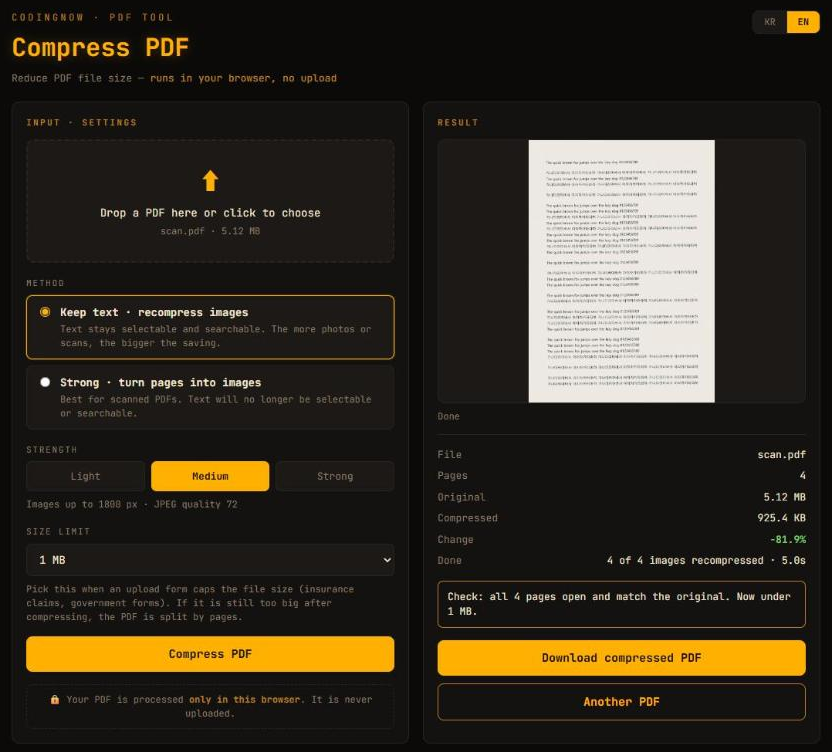
Drop a PDF in, pick a size limit like 8 MB, and download. Images are recompressed in your browser, the result is checked page by page against the original, and it splits by pages if it is still too big.
- ✓ Free
- ✓ No install, no sign-up
- ✓ Runs in your browser
- ✓ Files are never uploaded
- ✓ Open source
🔒 Your file is never sent to a server or anywhere else — it is processed only in your own browser.
What makes a PDF big
A PDF stores three kinds of things: the text and drawing commands for each page, the fonts those pages use, and images. Text and fonts are compact — a page of text takes a few kilobytes. Images are not. A single phone photo can be several megabytes, and a scanner saves every page as an image.
I opened four PDFs and added up what was inside them. In a photo PDF and a scan, images were 100% of the file. In a 16-page research paper, images were 4.12 MB of 7.70 MB, fonts 0.98 MB, and the page drawings (charts drawn as vectors) 2.52 MB. In a 68-page text-only document there were no images at all — 0.14 MB of fonts and 0.35 MB of page content.
| Size | Images inside | What can shrink | |
|---|---|---|---|
| 4 phone photos | 2.18 MB | 100% | Almost everything |
| 4-page scan, 300 dpi | 5.12 MB | 100% | Almost everything |
| 16-page paper with figures | 7.70 MB | 53% | The figures |
| 68-page text document | 0.51 MB | 0% | Almost nothing |
That is the whole story of PDF compression. Every method below works by storing the images at a lower resolution or a stronger JPEG setting. A PDF that is mostly text is already small, and no tool will make it much smaller without changing what it is.
Way 1: compress in the browser, without uploading
Many compressor sites upload your PDF to their server, shrink it there and send it back. For a receipt with your name, address and diagnosis on it, that upload is the part worth avoiding. The PDF Compressor on this site reads and rewrites the file inside your browser instead and never sends it to a server or anywhere else. While a PDF was loaded, compressed and checked, Chrome DevTools showed zero network requests — anyone can check this under F12 → Network.
- 1Open the PDF Compressor and drop the PDF in.
- 2Keep Keep text · recompress images for most files. It leaves text selectable and searchable.
- 3If the upload form has a cap, choose a Size limit such as 8 MB.
- 4Click Compress PDF. When the check finishes, download the result.
With the default Medium setting (images up to 1800 px on the long side, JPEG quality 72), the four files above came out like this:
Each result is reopened and every page is rendered small and compared with the same page of the original. If a page looks very different, the result is thrown away. I also opened the compressed paper in Chrome's built-in PDF viewer, a separate PDF engine, and its figures — including one with a transparent background — displayed correctly.
For a scan, the second method, Strong · turn pages into images, gives a similar size (the 5.12 MB scan became 0.89 MB at 150 dpi). For a PDF with real text it shrinks more than recompressing images, but the text can no longer be selected or searched.
When it is still over the limit: split it
Sometimes there is simply too much to fit. The 16-page paper only got down to 4.31 MB even at the strongest setting, and I needed it under 3 MB. With a size limit set, the tool first tries one step stronger, then splits the document by pages from the front, putting as many pages into each file as fit.
| File | Pages | Size |
|---|---|---|
| 1 | 1–7 | 1.35 MB |
| 2 | 8–9 | 2.99 MB |
| 3 | 10–16 | 0.71 MB |
Each piece is checked against the original pages the same way. One detail matters here: some sites count 1 MB as 1,000,000 bytes and others as 1,048,576. The tool uses the smaller number, so a file it calls 2.99 MB is under 3 MB either way. Most claim and application forms accept several attachments, so three files under the cap usually go through where one large file would not.
Way 2: Word or Excel — save as PDF at Minimum size
If you are making the PDF yourself from an Office file, make it small at the source. Microsoft's instructions for saving as PDF list two choices under Optimize for: Standard (publishing online and printing) and Minimum size (publishing online).
- 1File → Save As (or Save a Copy) → choose PDF as the file type.
- 2Under Optimize for, select Minimum size (publishing online).
- 3Save.
This only helps for documents you have as Office files. It cannot shrink a PDF someone sent you, and you do not get to choose how much smaller it gets.
Way 3: Mac — Preview's Reduce File Size
- 1Open the PDF in Preview.
- 2Choose File → Export.
- 3In the Quartz Filter pop-up menu, choose Reduce File Size, then click Save.
Apple's Preview guide describes exactly these steps. It is built in and quick, but it has one fixed strength. Check the result — a filter that shrinks a lot can make small text in scans hard to read.
Way 4: Ghostscript, for many files
Ghostscript is a free command-line PDF processor. Its documentation lists presets for the PDF writer: /screen for low-resolution output, /ebook for medium resolution, and /printer and /prepress for higher quality. A typical command looks like this (on Windows the program is gswin64c):
gswin64c -sDEVICE=pdfwrite -dPDFSETTINGS=/ebook -dNOPAUSE -dBATCH -sOutputFile=small.pdf input.pdfGhostscript's own documentation warns that these presets change the output in many ways and that adjusting individual settings is usually better if you need control. I did not measure Ghostscript for this article; check the output before sending it.
Which way to use
| Situation | Use | Why |
|---|---|---|
| A PDF with personal details must go under 8 MB | Browser tool with a size limit | Nothing is uploaded; it splits if needed |
| You are creating the PDF from Word or Excel | Minimum size when saving | Small from the start |
| You are on a Mac and need it quickly | Preview → Reduce File Size | Built in |
| Dozens of PDFs, scripted | Ghostscript | One command per file or folder |
| A text-only PDF that is still too big | Split by pages | There is nothing left to compress |
FAQ
Q. Will compressing make my PDF blurry?
Only the images change. At Medium, images are capped at 1800 px on the long side, which is still sharp on a screen for a receipt or a document photo. Text drawn as text stays perfectly sharp in the default method.
Q. Why didn't my PDF get smaller?
It is probably mostly text, or its images are already compressed. In the test, a 68-page text document shrank by only 0.3%. If it still has to fit a limit, split it by pages.
Q. How do I get a PDF under 8 MB for an insurance claim?
Set the size limit to 8 MB and compress. If it is still over, it is split into several files, each under 8 MB. Most claim forms accept more than one attachment.
Q. Is it safe to use online PDF compressors?
Many upload the file to their server. For documents with personal or medical details, prefer a tool that runs in your browser, or Word, Preview or Ghostscript on your own computer.
Q. What does 'turn pages into images' change?
Every page becomes one picture. The file shrinks a lot, especially for scans, but text can no longer be selected, searched or copied.
Drop a PDF in, pick a size limit like 8 MB, and download. Images are recompressed in your browser, the result is checked page by page against the original, and it splits by pages if it is still too big.
- ✓ Free
- ✓ No install, no sign-up
- ✓ Runs in your browser
- ✓ Files are never uploaded
- ✓ Open source
🔒 Your file is never sent to a server or anywhere else — it is processed only in your own browser.