Turning text into an MP3: built-in Windows voices, free tools and subtitle dubbing
Narration for a video, a spoken prompt in a slide deck, a subtitle file dubbed into audio: instead of recording it yourself, you can have the text read out. There are three routes. The voices already installed in Windows, a free tool that uses neural voices, and the cloud services. They differ in how natural the voice sounds, whether they need an internet connection, and what you're allowed to do with the result. Here is how each one works, plus the one problem you always hit when dubbing subtitles.
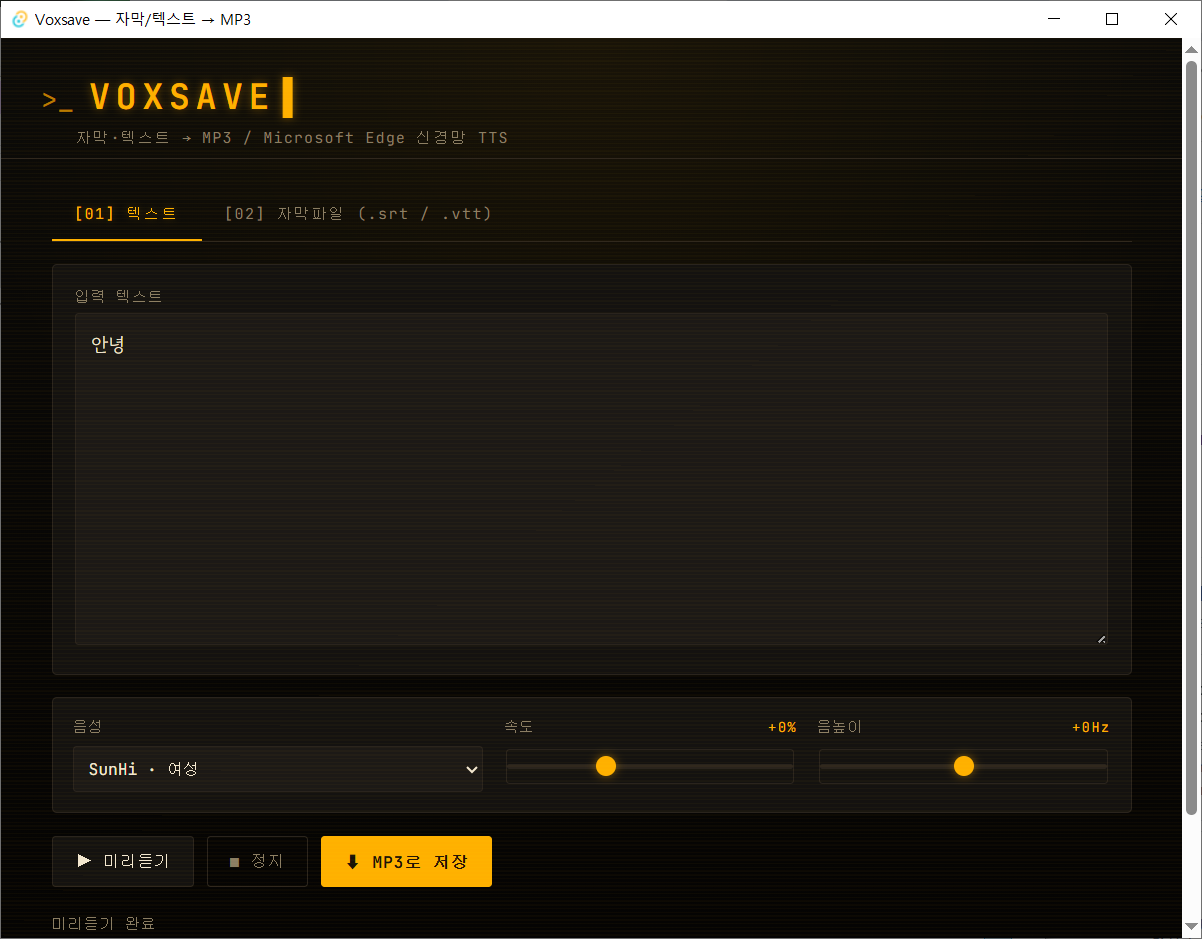
Reads text or a subtitle file (.srt / .vtt) with an Edge neural voice and saves it as an MP3. One installer, no sign-up or API key, with Korean, English, Chinese and Japanese voices.
- ✓ Free
- ✓ Free Windows program (download and run)
- ✓ Open source
Three routes, and how to choose
Turning written text into speech is TTS (text to speech). It used to sound unmistakably synthetic; neural voices have moved short sentences close enough to a human reading that most listeners don't notice. The catch is that those good voices are usually produced on a server somewhere, so the choice is mostly a trade between how it sounds and what it requires.
| Route | Voice | Requirements |
|---|---|---|
| Built-in Windows voices (PowerShell) | Robotic | No install, no internet, saves WAV |
| A free tool (Voxsave and similar) | Natural | Internet, Windows, MP3 and subtitle files |
Command line (edge-tts) | Natural | Python, good for batches and automation |
| Cloud services (ElevenLabs, Clova Dubbing…) | Natural | Account, free quota, commercial-use terms |
For a couple of short prompts, the built-in voices are fine. For narration that someone listens to for minutes at a time, a neural voice is worth the internet dependency: a robotic delivery makes people stop listening regardless of the content.
A WAV from the voices already in Windows
Windows ships with speech synthesis. Narrator and Edge's Read Aloud use it, but neither offers a save button. PowerShell can drive the same engine and write a WAV file. Open PowerShell from the Start menu and paste this:
Add-Type -AssemblyName System.Speech
$s = New-Object System.Speech.Synthesis.SpeechSynthesizer

# Which voices are available
$s.GetInstalledVoices() | ForEach-Object { $_.VoiceInfo.Name + " (" + $_.VoiceInfo.Culture + ")" }

# Pick a voice and a rate (-10 to 10, 0 is normal)
$s.SelectVoice("Microsoft Zira Desktop")
$s.Rate = 0

# Write it to a file
$s.SetOutputToWaveFile("C:\temp\narration.wav")
$s.Speak("Hello. Today we are turning text into speech.")
$s.Dispose()
An English install usually has Microsoft David Desktop and Microsoft Zira Desktop; other language packs add their own. For a long script, read the file and hand the whole thing over, so one script file becomes one audio file:
Add-Type -AssemblyName System.Speech
$s = New-Object System.Speech.Synthesis.SpeechSynthesizer
$s.SetOutputToWaveFile("C:\temp\narration.wav")
$s.Speak((Get-Content "C:\temp\script.txt" -Raw -Encoding UTF8))
$s.Dispose()Voices you add under Settings > Time & language > Speech often don't show up in that list. Recent Windows voices are registered in a different place from the older SAPI ones, and System.Speech only reads the older one. On the Windows 11 (25H2) PC used for this guide there was one installed voice that never appeared in the list. Treat the printed list as the complete set for this method.
- The output is a WAV, which is large. Convert it if you need an MP3.
- Edge's Read Aloud uses much better voices, but there is no way to save what it plays.
$s.Rateruns from -10 to 10. Around 0 to 2 is comfortable for instructions.
A natural voice in an MP3: free tools
The voices Microsoft Edge reads pages with are neural voices, and they sound far better. Free tools exist that save that audio to a file. Voxsave, built for this site, is one: paste a script or drop a subtitle file on it and it writes an MP3.
- 1Install and run it, then paste your script or drop a subtitle file (.srt / .vtt) onto the window.
- 2Pick a voice. Korean has a female (SunHi) and a male (InJoon) voice, and there are multilingual voices too.
- 3Set the rate and pitch, and check it with the preview.
- 4Save, and you get an MP3.
- No account, no login, no API key.
- The preview works offline, but saving an MP3 needs an internet connection, because Microsoft's servers do the synthesis.
- Windows 10 (1803 or later) and 11 only.
- Being unsigned freeware, it trips SmartScreen the first time: More info > Run anyway.
Tools like this call the same Microsoft voice service Edge uses. That's unproblematic for personal use, but for advertising or other commercial work at scale it's worth reading Microsoft's terms first.
Automating it: edge-tts
The same voices are available from the command line. With Python installed, edge-tts lets you batch a folder of scripts or wire speech into a larger pipeline.
pip install edge-tts

# Text to MP3, with a matching .srt
edge-tts --text "Hello, world!" --write-media hello.mp3 --write-subtitles hello.srt

# List the voices
edge-tts --list-voices

# Read a script file with a chosen voice
edge-tts --voice en-US-AriaNeural --file script.txt --write-media narration.mp3

# Rate, volume, pitch
edge-tts --rate=-50% --text "Hello, world!" --write-media slower.mp3
edge-tts --volume=-50% --text "Hello, world!" --write-media quieter.mp3
edge-tts --pitch=-50Hz --text "Hello, world!" --write-media lower.mp3
Those are the options from the project's own documentation and command-line help. Loop over a folder and you can produce a series in one go. If you prefer a window to a terminal, the previous section is the same engine with a GUI.
Dubbing subtitles: the lengths never match
A subtitle file states exactly how long each line stays on screen. Read that line out loud and it almost always takes longer: people skim subtitles, while a synthesized voice pronounces every syllable. Translate the subtitles into another language first and the gap gets wider.
- Raise the rate. 10-20% faster still sounds natural.
- Shorten the line. The narration doesn't have to match the subtitle word for word; the same meaning in fewer words fits.
- Merge cues. Two short subtitles as one sentence give you room either side.
- If it has to be exact, cut the audio per cue in a video editor. That's faster than fighting the timings.
If you're making a new video rather than dubbing an existing one, reverse the order: generate the narration first, then cut the visuals to its length. Nothing has to be squeezed afterwards.
Cloud services and commercial use
Paid services offer more voices and finer control over delivery. In exchange, the free tier has a quota, and what you may do with the audio depends on the plan. If money is involved in the content, read that part first.
| Service | Free tier | Commercial use |
|---|---|---|
| ElevenLabs | 10,000 credits a month (about 10 minutes) | No commercial licence on the free plan; paid starts at $6 a month |
| Naver Clova Dubbing | Monthly download and character limits | Attribution required on free; ads and promotion need a paid plan |
| Edge neural voices (Voxsave, edge-tts) | No quota | Check Microsoft's terms |
Those figures are from September 2026, and free quotas and licence terms change often. Check the pricing page before you rely on one. "Free to generate, but not for monetised content" is a common combination.
One thing sits apart from the plan you pay for: cloning a real person's voice without their consent is a problem whatever the service allows. Sticking to the stock voices avoids the question entirely.
FAQ
Q. How do I convert the WAV to an MP3?
If it goes straight into a video editor, the WAV is fine as is. To shrink it, use any converter; from a terminal, ffmpeg -i narration.wav narration.mp3 is a single line.
Q. My language's voice isn't in the list.
Check that the language pack is installed under Settings > Time & language, then add the voice under Speech. Note that a newly added voice may still not appear in the System.Speech list. When that happens, a tool that uses the Edge neural voices is the quicker way.
Q. Long scripts get cut off.
Split the script into paragraphs, save each one, and join the audio. Leaving a blank line or two after the final sentence also helps with clipped endings.
Q. Can I use this in a YouTube video?
It depends on the terms of the service that produced the audio. Free tiers often exclude commercial use, so check the licence before monetising. If the script itself is someone else's writing, that's a separate question.
Q. Can I get a natural voice without an internet connection?
Windows 11's Narrator includes natural voices that run on the device, but there's no way to save what they read. If you need a file and can't be online, the built-in voices above are the realistic option.
Reads text or a subtitle file (.srt / .vtt) with an Edge neural voice and saves it as an MP3. One installer, no sign-up or API key, with Korean, English, Chinese and Japanese voices.
- ✓ Free
- ✓ Free Windows program (download and run)
- ✓ Open source
Comments 0
No comments yet. Be the first.
Only members can comment.
Comments with ads, abuse, personal information or illegal content are hidden or removed. Members who post ads, spam, or hateful content are removed from the site, and everything they wrote is deleted. Comments are shown with your nickname. Privacy Policy