Schedule a program on Windows: Task Scheduler basics and why your task doesn't run
Opening the same program every morning, running a backup script after work, launching a trading app before the market opens: Windows already ships with a tool for this, Task Scheduler. Creating a task takes five minutes. The trouble starts when the time comes and nothing happens, or the program runs but you never see its window. Almost always the cause is one of a few default settings. This guide walks through creating a task and then where to look when it doesn't run.
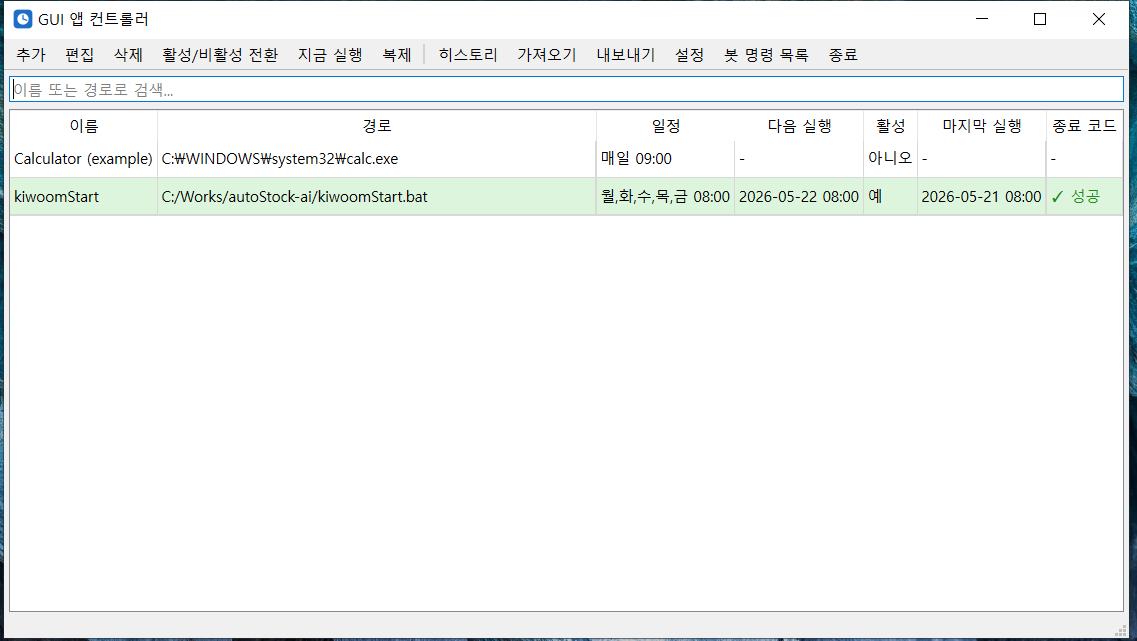
For when Task Scheduler's tabs and options feel like too much. Sits in the tray, launches .exe, .bat and .cmd files at set times from one table, and lets you control the PC from your phone through a Telegram bot.
- ✓ Free
- ✓ Free Windows program (download and run)
Four ways to do it, and which to pick
There are four common ways to start a program automatically on Windows. Task Scheduler, which comes with Windows, has the most options, and you can create the same tasks from the command line. If a program only needs to start once when you sign in, the Startup folder is simpler still, and a dedicated tool is an option if you'd rather not deal with the settings at all.
| Method | Good for | Watch out for |
|---|---|---|
| Task Scheduler (built in) | Daily or weekly times, at startup, tasks that must run while nobody is signed in | Default settings silently stop many tasks (most of this guide) |
schtasks or PowerShell | Creating the same task on several PCs, scripted setups | schtasks can't set the Start in folder |
Startup folder (shell:startup) | Starting something once each time you sign in | No time of day |
| A dedicated tool (GUI Apps Controller etc.) | Managing many programs and times from one screen | Only works while the tool is running and you're signed in |
Create a task with Create Basic Task
The wizard is the easiest place to start. The steps below are from Windows 11, and Windows 10 is nearly identical.
- 1Press
Win+R, typetaskschd.mscand press Enter. Searching for Task Scheduler in the Start menu works too. - 2Select Task Scheduler Library on the left, then click Create Basic Task in the Actions pane on the right.
- 3Give it a name that says what it does, like 'Open messenger in the morning', so you can find it in the list later.
- 4Choose the trigger: Daily, Weekly, Monthly, One time, When the computer starts, When I log on, or When a specific event is logged. Then set the time.
- 5Choose Start a program as the action and pick the executable in Program/script. Using Browse avoids typos in the path.
- 6Put the folder that contains the executable in Start in (optional). Leave it empty and some programs look for their settings in the wrong place and fail.
- 7Click Finish. To test without waiting, right-click the task in the list and choose Run.
With Start in left empty, the task runs with C:\Windows\System32 as its working folder. If a program starts fine when you double-click it but can't read its settings or write its log when scheduled, this field is the usual reason. For a batch file, adding cd /d "%~dp0" as the first line makes it run from its own folder.
The time came and nothing happened: the four gates
Even after a trigger fires, a task still has to get through its conditions, its security options and its action before anything visible happens. The Status and Last Run Result columns in the task list, and the History tab below it, tell you which gate stopped it.
An empty History tab means history is turned off. Click Enable All Tasks History in the Actions pane, and from the next run on you'll see whether the trigger fired, whether the action started and which code it ended with. The same events are in Event Viewer under Applications and Services Logs → Microsoft → Windows → TaskScheduler → Operational.
The program runs but no window appears: check the security options
The Security options at the bottom of the General tab offer Run only when user is logged on and Run whether user is logged on or not. Tasks made with Create Basic Task get the first one. The second sounds like the broader choice, but it behaves very differently.
With Run whether user is logged on or not, the task runs in a separate session behind the sign-in screen. A program with a window, like Notepad or a trading app, still starts, but it never shows up on your screen and just sits there waiting for input that can't arrive. Last Run Result shows 0x41301 (currently running), and the next scheduled run doesn't start a second copy, because by default Task Scheduler won't start a new instance while one is running.
- Programs you need to see and use: Run only when user is logged on. If you're signed out at that time, that run is skipped.
- Backup or cleanup scripts that need no window: Run whether user is logged on or not. As a bonus, no black console window flashes up. You do have to enter and save the account password.
- Programs that need admin rights: turn on Run with highest privileges and the task starts elevated without the User Account Control prompt each time.
Ticking Do not store password lets you skip the password, but Microsoft's documentation notes that this logon type has no access to the network or encrypted files. Leave it off for a task that backs up to a NAS or network share.
It only fails on a laptop: the power conditions
If a task that runs fine on a desktop is quietly skipped on a laptop, open the Conditions tab. Start the task only if the computer is on AC power is on by default, so while you're on battery the task doesn't start at all. The option under it, Stop if the computer switches to battery power, is also on by default and stops a running task when you unplug the charger.
- For tasks that should run on battery, clear both boxes.
- To wake a sleeping PC for the task, turn on Wake the computer to run this task. It's off by default and also needs wake timers allowed in Power Options.
- The idle condition (start only after the PC has been idle for a while) is off by default. If you turned it on, the task won't start while you're using the PC.
Missed runs and long-running programs: the Settings tab
If the PC was off at the scheduled time, that run is skipped by default. To have it run once the PC is back on, turn on Run task as soon as possible after a scheduled start is missed on the Settings tab. A 9 a.m. backup on a PC you switch on at 10 then runs shortly after startup.
The same tab has a run-time limit, Stop the task if it runs longer than, set to 3 days by default. Launch a program that stays open for days through Task Scheduler and it gets stopped once 72 hours have passed. For trading apps, servers and anything meant to stay open, clear that box.
| Setting | Default | Change it when |
|---|---|---|
| Start only on AC power (Conditions) | On | a laptop task should run on battery |
| Stop on switch to battery (Conditions) | On | you might unplug while it runs |
| Run after a missed start (Settings) | Off | you switch the PC on at different times |
| Stop if it runs longer than (Settings) | 3 days | the program stays open for days |
| If already running (Settings) | Do not start a new instance | usually safest to leave |
Reading Last Run Result codes
The Last Run Result column shows a hex code in parentheses. Values starting with 0x4130 are Task Scheduler reporting its own status, and other small numbers are usually the exit code the program returned when it finished. The 0x4130… meanings follow Microsoft's Task Scheduler error and success constants, and the 0x8007… ones follow the standard Windows error messages.
| Code | Meaning | Check |
|---|---|---|
0x0 | Success (the program exited with 0) | No output anyway? The Start in folder and the account |
0x41301 | The task is currently running | A hidden window, the run-time limit |
0x41303 | The task has not yet run | The trigger date and time, the Conditions tab |
0x80070002 | The system cannot find the file specified | Typos, quotes, network drives in the path |
0x800710E0 | The operator or administrator has refused the request | Conditions (power, idle), account permissions |
0x1, 0x2 … | The program's own exit code | Run the program or script by hand and read the error |
0x41303 isn't a fault. Many of the tasks Windows installs only run in specific situations, so an ordinary PC shows dozens of them with this value. If a task you created still shows it after its scheduled time, the trigger didn't fire or a condition blocked it.
A batch-file task that ends with 0x1 means the batch file exited with error code 1. A batch file's exit code is usually the result of the last command it ran, so that command most likely failed. Task Scheduler won't show you the error itself, so append >> log.txt 2>&1 to the commands to capture their output in a file.
From the command line: schtasks and PowerShell
To create the same task on several PCs, or from a setup script, use the command line. In Command Prompt, schtasks does it in one line. Date and time formats follow the schtasks /create /? help.
:: Run Notepad every day at 9:00
schtasks /create /tn "Morning Notepad" /tr "C:\Windows\System32\notepad.exe" /sc daily /st 09:00

:: Run a batch file every Monday and Friday at 18:30
schtasks /create /tn "Weekly backup" /tr "C:\Tools\backup.bat" /sc weekly /d MON,FRI /st 18:30

:: Paths with spaces need an inner pair of single quotes
schtasks /create /tn "Report" /tr "'C:\Program Files\Report\report.exe' --quiet" /sc daily /st 07:00

:: Run now, show details, delete
schtasks /run /tn "Morning Notepad"
schtasks /query /tn "Morning Notepad" /v /fo list
schtasks /delete /tn "Morning Notepad" /f
Tasks set to run with highest privileges (/rl highest) have to be created from an elevated Command Prompt. One thing schtasks can't do is set the Start in folder. There's no option for it, so wrap the program in a batch file or use PowerShell instead.
$action   = New-ScheduledTaskAction -Execute "C:\Tools\report.exe" -WorkingDirectory "C:\Tools"
$trigger  = New-ScheduledTaskTrigger -Daily -At 9am
# Run on battery, catch up on missed runs, no run-time limit
$settings = New-ScheduledTaskSettingsSet -AllowStartIfOnBatteries -DontStopIfGoingOnBatteries -StartWhenAvailable -ExecutionTimeLimit ([TimeSpan]::Zero)
Register-ScheduledTask -TaskName "Morning report" -Action $action -Trigger $trigger -Settings $settings
The PowerShell route lets you change the defaults covered above (the battery conditions, missed runs, the 3-day limit) in one go. Afterwards, open the task in Task Scheduler and check that the settings came out as intended.
Simpler options: the Startup folder and a dedicated tool
If the time doesn't matter and a program just needs to start when you sign in, skip Task Scheduler. Type shell:startup into Win+R to open your Startup folder, and any shortcut you put there runs every time you sign in. Delete the shortcut to stop it.
If you launch several programs on different days and times and clicking through five tabs per task gets tedious, a dedicated tool is easier. GUI Apps Controller, from this site, sits in the tray and keeps .exe, .bat and .cmd files and their times in a single table, logging every run to %APPDATA%\GuiAppsController\logs\app.log. It launches programs on your own desktop, so hidden windows aren't an issue, and a Telegram bot lets you ask it from your phone to launch a program, lock the screen or take a screenshot.
To be fair about it: a dedicated tool only works while the tool itself is running and you're signed in, and runs scheduled while the PC was off are skipped. For tasks that must run before anyone signs in, or that need to wake a sleeping PC, use Task Scheduler's options for that.
FAQ
Q. I created a task but it isn't in the list.
Make sure Task Scheduler Library is selected in the left tree and click Refresh in the Actions pane. If you saved it in a subfolder, select that folder to see it.
Q. My scheduled batch file flashes a black window.
That's expected for a batch file set to run only when you're logged on. If it doesn't need a window, switch the security option to Run whether user is logged on or not and it runs without one. You'll need to enter the account password.
Q. Can I shut the PC down at a set time?
Yes. For a one-off, shutdown /s /t 3600 in Command Prompt shuts down after 3600 seconds (one hour), and shutdown /a cancels it. To do it daily, create a task with shutdown as the program and /s /t 60 as the arguments. Unsaved work can be lost, so be careful.
Q. How do I run an admin program without the UAC prompt every time?
Turn on Run with highest privileges on the task's General tab. Task Scheduler starts the program elevated, so the User Account Control prompt doesn't appear.
Q. Do I have to recreate the task to change its time?
No. Double-click the task, go to the Triggers tab, select the trigger and click Edit to change the time or repeat interval. From the command line, use something like schtasks /change /tn "Task name" /st 10:00.
For when Task Scheduler's tabs and options feel like too much. Sits in the tray, launches .exe, .bat and .cmd files at set times from one table, and lets you control the PC from your phone through a Telegram bot.
- ✓ Free
- ✓ Free Windows program (download and run)
Comments 0
No comments yet. Be the first.
Only members can comment.
Comments with ads, abuse, personal information or illegal content are hidden or removed. Members who post ads, spam, or hateful content are removed from the site, and everything they wrote is deleted. Comments are shown with your nickname. Privacy Policy