How to Record Audio on Windows 11: Your Voice, Your PC's Sound, and What to Check When Nothing Records
You want to record a voice note, a lecture, or the audio from a video call, and Windows should manage it without extra software. It mostly can: Sound Recorder handles the microphone, and Snipping Tool can capture what the PC plays along with the screen. What trips people up is the step before you press record. On the PC I tested, Windows remembered four recording devices and marked every one of them as not present, and the Sound Recorder that came with Windows turned out to be an installer stub that downloads the real app the first time it runs. Here is how to record, and how to check each step when nothing happens.
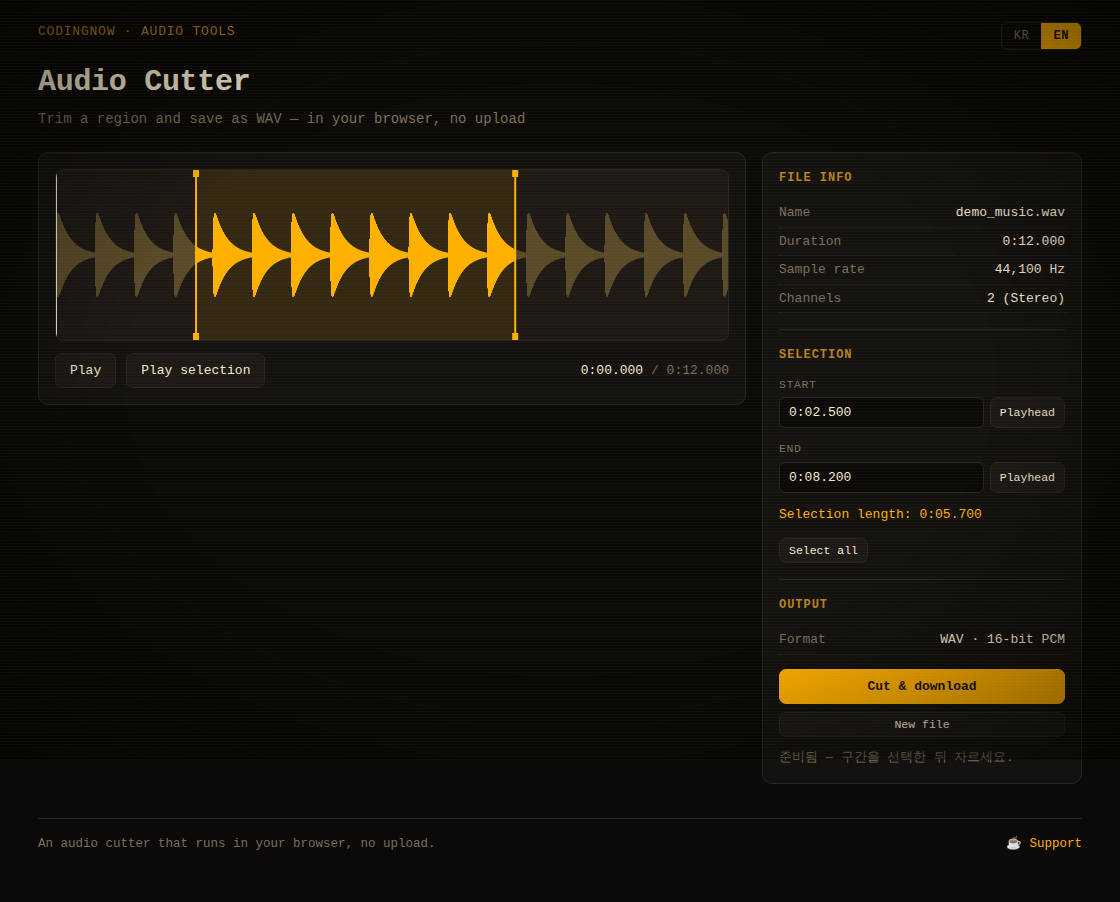
Open the recording, drag across the part you need and save it. M4A files work, and the file is decoded in your browser — nothing is uploaded.
- ✓ Free
- ✓ No install, no sign-up
- ✓ Runs in your browser
- ✓ Files are never uploaded
- ✓ Open source
🔒 Your file is never sent to a server or anywhere else — it is processed only in your own browser.
Which way to record
Start with what you want to capture. A microphone and the sound coming out of your speakers are two different things to Windows: the first is an input device that any recorder can open, the second is playback, and Sound Recorder has no option for it. That one distinction decides which tool you need.
| What you want | Use | Built in? | What you get |
|---|---|---|---|
| Your voice, a meeting in the room, a lecture | Sound Recorder | Yes (may download on first launch) | An audio file per recording, up to 3 hours |
| A video, game or call together with its sound | Snipping Tool screen recording with PC audio | Yes, version 11.2307.44.0 or later | A screen recording that includes the sound |
| Only the sound the PC plays | Audacity with Windows WASAPI loopback | No, free download | An audio file, no Stereo Mix needed |
| PC sound through Stereo Mix | Any recorder, with Stereo Mix as the input | Only if your sound driver provides it | Not available on the test PC |
Step 1: make sure Windows sees a microphone
Every recorder, built in or not, needs Windows to report a working input device. Open Settings > System > Sound and look at the Input section. If no microphone is listed there, no app can record your voice, however you set it up. The older Sound control panel shows more detail: run control mmsys.cpl,,1 (Win+R, then paste it) and it opens straight on the Recording tab. Right-click an empty area and tick Show Disabled Devices and Show Disconnected Devices to see the devices Windows is hiding.
The test PC is a desktop with no microphone plugged in, and Settings listed only outputs: the speakers and two monitors over HDMI. Windows still remembers every recording device it has seen, though, and the registry shows them with their state. This is the PowerShell I ran (no administrator rights needed), followed by its output:
$base = 'HKLM:\SOFTWARE\Microsoft\Windows\CurrentVersion\MMDevices\Audio\Capture'
Get-ChildItem $base | ForEach-Object {
  $p = Get-ItemProperty "$($_.PSPath)\Properties"
  '{0}  {1} / {2}' -f (Get-ItemProperty $_.PSPath).DeviceState,
    $p.'{a45c254e-df1c-4efd-8020-67d146a850e0},2',
    $p.'{b3f8fa53-0004-438e-9003-51a46e139bfc},6'
}

# Output on the test PC (Korean Windows: 마이크 = Microphone, 라인 입력 = Line in)
4  마이크 / High Definition Audio Device
4  마이크 / High Definition Audio Device
4  마이크 / Yeti X
4  라인 입력 / High Definition Audio Device
The first number is the device state, and Microsoft documents what each value means. 1 is active: present, enabled and plugged in. 2 is disabled in the Sound control panel. 4 is not present: the adapter is gone, has been disabled in Device Manager, or, as with a USB microphone, simply isn't connected. 8 is unplugged, for jacks that can sense whether something is in them. Microsoft's documentation adds that a program can open an audio stream only on a device in the active state. All four inputs here are state 4, including the Yeti X USB microphone that was used on this PC before, so Sound Recorder would have had nothing to record. Plug the microphone back in and it becomes state 1 again.
Two more settings sit between the microphone and the app. Microsoft's FAQ says Sound Recorder asks for microphone access the first time you open it; if you declined, go to Start > Settings > Privacy & security > Microphone and switch Sound Recorder on under 'Let apps access your microphone'. If the recording is too quiet, the same FAQ points to Start > Settings > System > Sound > Input, where you pick the microphone and move the Input volume slider.
Step 2: record with Sound Recorder
- 1Open Start and search for Sound Recorder.
- 2Pick the microphone in the app if you have more than one. Microsoft added in-app switching of the recording device and the file format when the new Sound Recorder replaced the old Voice Recorder app in 2022.
- 3Press Start recording or
Ctrl+R. - 4Press
Spaceto pause. Pressing record again resumes the same recording rather than starting a new one. - 5Press Stop recording or
Esc. The recording appears in the list, and the nextCtrl+Rstarts a new file. - 6Right-click a recording to rename, share or delete it.
Each recording file can be up to three hours long. For a full day of lectures, stop and start again between sessions so no single file runs past that. I couldn't make a recording on the test PC, because it had no active input and the app itself wasn't installed yet, so I can't list the formats from a run of my own, and Microsoft's pages don't list them either. What the installed package does declare is the .m4a file type and the microphone capability, which matches users' reports that recordings come out as M4A by default.
Microsoft's FAQ says recordings are stored within the Sound Recorder app, and that uninstalling the app deletes them. Users on Microsoft Q&A report finding them in a Sound recordings folder inside Documents, but that is not stated by Microsoft. For anything you can't afford to lose, use Share to send a copy somewhere else as soon as you've recorded it.
If Sound Recorder won't start: it may still be an installer
Sound Recorder may not actually be installed yet, even though it shows up in Start. On the test PC (Windows build 26300) the package is version 1.1.127.0 and its program file is just 354,816 bytes. I dumped the text resources inside it with Microsoft's makepri tool. Apart from the app name, Windows Sound Recorder, every string belongs to an installer: 'Install Windows Sound Recorder', 'Preparing Windows Sound Recorder for first launch', 'Downloading updates', 'Connect to the Internet and try again', and 'App update policies on this PC are preventing you from receiving a required app update'.
So on a PC like this, the first launch needs an internet connection, because it fetches the real app. If you see the policy message on a work or school computer, the update is blocked on purpose and only the administrator can allow it. The full app is listed in the Microsoft Store as Windows Sound Recorder by Microsoft Corporation, described as a way to 'record sounds, lectures, interviews, and other events'.
Recording the sound your PC is playing
Sound Recorder records from an input, so pointing it at a video or a call won't work unless the sound reaches a microphone. There are three ways to capture playback directly.
Snipping Tool: screen recording with PC audio
Snipping Tool, which is built into Windows 11, gained 'support for optionally recording your PC audio and voice overs using a microphone' in version 11.2307.44.0, according to the Windows Insider Blog (August 2023). Its settings let you choose the default audio for new screen recordings and pick a recording device. The test PC has version 11.2607.23.0. The result is a screen recording with sound, so it suits a game, a tutorial or a call you also want to see. If you only need the audio, Audacity gives you an audio file directly.
Audacity: Windows WASAPI loopback
- 1Install Audacity (free) from audacityteam.org.
- 2In the toolbar, set the Audio Host to Windows WASAPI.
- 3Set the Recording Device to the loopback entry of the output you listen on, for example Speakers (loopback).
- 4Start playing the audio first, then press Record.
- 5If recording in mono gives an error, switch the recording channels to stereo.
Audacity's manual notes that the loopback input 'records computer playback even if your sound device lacks its own stereo mix or similar input', and that you can mute the playback in the Volume Mixer if you don't want to hear it while recording.
Stereo Mix, if your driver has it
Stereo Mix is a recording input that some sound drivers provide, carrying whatever the card is playing. Where it exists it is often disabled: open control mmsys.cpl,,1, show disabled devices, right-click Stereo Mix and choose Enable, and any recorder can then use it as its input. The test PC uses the generic High Definition Audio Device driver, and its recording endpoints are only microphones and a line-in. There is no Stereo Mix to enable, which is exactly the case the WASAPI loopback covers.
Audacity's manual adds: 'Copyright or website restrictions may prevent you recording or distributing material. Check first.' Recording a stream for yourself and sharing it are not the same thing.
After recording: trim, convert, send
Sound Recorder records, renames, shares and deletes; Microsoft's FAQ lists nothing for cutting a recording down. To keep only part of it, open the file in a browser-based audio cutter such as the one on this site, which reads M4A and saves the chosen part as WAV without uploading it. The separate guide 'How to Trim a Voice Recording' compares phone apps, the browser and FFmpeg on a 60-minute file, and 'Convert WAV to MP3 on Windows with nothing installed' shows how to turn the result into MP3 with what Windows already has.
FAQ
Q. Where does Windows Sound Recorder save recordings?
Microsoft's FAQ only says recordings are stored within the Sound Recorder app, and that uninstalling the app deletes them. Users on Microsoft Q&A report a Sound recordings folder inside Documents. For anything important, share a copy out of the app right after recording.
Q. How long can I record with Sound Recorder?
Up to three hours per recording file, according to Microsoft's FAQ for the Windows 11 app. For longer sessions, stop and start a new recording.
Q. Can Sound Recorder record the sound playing on my PC?
Not directly, because it records an input device such as a microphone. Use Snipping Tool's screen recording with PC audio, Audacity with the Windows WASAPI loopback input, or Stereo Mix if your sound driver provides it.
Q. Why doesn't my microphone show up in Windows?
Windows lists only active devices by default. A disconnected USB microphone or a removed adapter has state 4, not present, and no app can open a stream on it. Plug it in, then check Settings > System > Sound > Input. In control mmsys.cpl,,1 you can tick Show Disabled Devices to see hidden ones.
Q. Why does Sound Recorder say it needs the internet or an update?
Some PCs ship an installer stub instead of the full app. On the test PC, version 1.1.127.0 contained only installer messages. Connect once so it can download the app; if it says update policies are blocking it, ask your administrator.
Open the recording, drag across the part you need and save it. M4A files work, and the file is decoded in your browser — nothing is uploaded.
- ✓ Free
- ✓ No install, no sign-up
- ✓ Runs in your browser
- ✓ Files are never uploaded
- ✓ Open source
🔒 Your file is never sent to a server or anywhere else — it is processed only in your own browser.
Comments 0
No comments yet. Be the first.
Sign-up and comments open on October 20, 2026, when the updated Privacy Policy takes effect.
Comments with ads, abuse, personal information or illegal content are hidden or removed. Comments are shown with your nickname. Privacy Policy